# Chart Tools

## Instrument

To access the **Instrument Editor**, use one of the following methods:

1. Left click on the ![](https://2105664868-files.gitbook.io/~/files/v0/b/gitbook-x-prod.appspot.com/o/spaces%2FSb9KiaeLmZhUGHJdWN19%2Fuploads%2FE9WhO9BaYjFrJdvDv7ig%2FSnag_76a3e998.png?alt=media\&token=cf52b52e-acb4-4c18-aac9-fea4a2967e29) icon within the chart toolbar.
2. Right-click in the charting area to bring up the chart context menu. Then select **Settings** followed by the **Select Instrument** menu item.&#x20;

The Instruments window will appear, displaying the features of the selected instrument. This functionality ensures that users can make changes promptly, such as updating the expiry month for a futures contract, etc.

<figure><img src="https://2105664868-files.gitbook.io/~/files/v0/b/gitbook-x-prod.appspot.com/o/spaces%2FSb9KiaeLmZhUGHJdWN19%2Fuploads%2FAGidwznIqY5qR6Yc3Hok%2FSnag_76a69530.png?alt=media&#x26;token=d4898b6a-fbc9-4260-aa58-2c4ecf4ac14f" alt=""><figcaption></figcaption></figure>

## Time frame

#### Time frames and interval settings for a chart <a href="#time_frames_and_interval_settings_for_a_chart" id="time_frames_and_interval_settings_for_a_chart"></a>

*You can access available time frames in one of the three following ways:*

1. Left click on the ![](https://2105664868-files.gitbook.io/~/files/v0/b/gitbook-x-prod.appspot.com/o/spaces%2FSb9KiaeLmZhUGHJdWN19%2Fuploads%2FBC2hDAIGCwqMhcsqg9d5%2F%D0%B7%D0%BE%D0%B1%D1%80%D0%B0%D0%B6%D0%B5%D0%BD%D0%BD%D1%8F.png?alt=media\&token=cd5f664b-e790-4828-810b-9c0df93af0e5) icon within the chart toolbar.
2. Right click in the charting area to bring up the chart context menu, then select **Settings** followed by the **Time Frame** menu item.
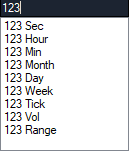
3. Click on chart and press **Space** button, then type interval in open dialog:

&#x20;

<figure><img src="https://2105664868-files.gitbook.io/~/files/v0/b/gitbook-x-prod.appspot.com/o/spaces%2FSb9KiaeLmZhUGHJdWN19%2Fuploads%2Fa5wR1YD1AhAS5gEnJiiq%2FSnag_76a7f164.png?alt=media&#x26;token=bfb8434a-46dc-4381-ac14-7101dbfa6b02" alt=""><figcaption></figcaption></figure>

Select the [Preferences -> ActionBar](https://docs.agenatrader.com/main/actionbar) tab from the **Tools** main menu to define your own time frames or change existing time frames (periodicity and interval).

**The following periodicities are available within the Preferences:**

* Seconds: x seconds per candle
* Minutes: x minutes per candle
* Hours: x hours per candle
* Days: x days per candle
* Weeks: x weeks per candle
* Months: x months per candle
* Ticks: x ticks per candle (a tick = one trade)
* Volumes: x traded shares/contracts per candle
* Range: x cents/pips/points/ticks per candle (price range)

In this case x corresponds to the interval entered.

After making all necessary changes, time frames will appear in the toolbar on the chart. Click on a time interval to apply it to the current chart.

<figure><img src="https://2105664868-files.gitbook.io/~/files/v0/b/gitbook-x-prod.appspot.com/o/spaces%2FSb9KiaeLmZhUGHJdWN19%2Fuploads%2FU06WbHb4jnHy8ikCA9JC%2FSnag_76a8f930.png?alt=media&#x26;token=aa210bb0-9b7c-4f03-8ff5-520ce083f353" alt=""><figcaption></figcaption></figure>

Using **Custom Parameter**, you can open the **Instrument Dialog**, where you can configure the following **chart settings**:

* **Instrument:** Enter the instrument symbol. There are two ways to do this:
  * Manually enter the instrument symbol. The system will check if the instrument is registered in the **Instrument Manager**. If the symbol is not found, the entry will be automatically deleted.
  * Click the  ![Instr](https://docs.agenatrader.com/~gitbook/image?url=https%3A%2F%2F1347375179-files.gitbook.io%2F%7E%2Ffiles%2Fv0%2Fb%2Fgitbook-legacy-files%2Fo%2Fassets%252F-MKZSsJBtSP9L4sqIe_q%252F-MP9P3vFZH_eTVbqUMdh%252F-MP9POm3UlFx_libN7z-%252Finstr.png%3Falt%3Dmedia%26token%3D28e160d5-a371-4f3c-a508-8d9222889d07\&width=300\&dpr=4\&quality=100\&sign=b78a9dba\&sv=1) **button** to open the **Instrument Manager**, where you can select an instrument from the available list.
* **Period Type/Interval:** Defines the **time unit** for the chart.
* **Price Style:** Determines the **chart type** (e.g., candlestick chart, bar chart, line chart, etc.).

**Historical Data:**

* **Number of Candles:** Displays the exact number of historical periods in the chart.
* **Time Range:** You can select a historical time span using either **"Days Back"** or **"From/To Date"** to display past data accordingly.

**Templates:**

* If you have saved **chart templates**, you can apply them to build the chart.
* If no template is selected, the **default template** will be used.

<figure><img src="https://2105664868-files.gitbook.io/~/files/v0/b/gitbook-x-prod.appspot.com/o/spaces%2FSb9KiaeLmZhUGHJdWN19%2Fuploads%2FkSfAtPN2TZrRBKRXLr41%2Fimage.png?alt=media&#x26;token=ab13fee1-1eec-4a48-83b4-8d28d1a1ddf8" alt=""><figcaption></figcaption></figure>

{% hint style="info" %}

**Note: Direct vs. Processed Charts**

* **"Direct"** refers to a chart where **both data and style** are received **exactly as provided by the data feed**.
* **"Processed"** means that while the **data comes from the data feed**, the **specific chart style is generated by AgenaTrader**.
  {% endhint %}

## <img src="https://2105664868-files.gitbook.io/~/files/v0/b/gitbook-x-prod.appspot.com/o/spaces%2FSb9KiaeLmZhUGHJdWN19%2Fuploads%2FUqb2kd1PDr1B5bUSods8%2FImg_CreateChart.png?alt=media&#x26;token=5dd8c510-39e8-4f79-b5b2-634364089918" alt="" data-size="line"> Multidata

This feature enables the addition of multiple data series within a single chart.

*In order to add secondary data series please:*

Left click on the <img src="https://2105664868-files.gitbook.io/~/files/v0/b/gitbook-x-prod.appspot.com/o/spaces%2FSb9KiaeLmZhUGHJdWN19%2Fuploads%2FydxLHLNG2h6R4n8kVNvn%2FImg_AddChart.png?alt=media&#x26;token=6ea667cc-157b-49f3-a0ff-9152e83c824c" alt="" data-size="line"> icon within the chart toolbar.

In open dialog please type data series you want to add:

<figure><img src="https://2105664868-files.gitbook.io/~/files/v0/b/gitbook-x-prod.appspot.com/o/spaces%2FSb9KiaeLmZhUGHJdWN19%2Fuploads%2FXFxVdYYvLn3owB8X2Joi%2FSnag_76a9ffb3.png?alt=media&#x26;token=24eeee6c-3fb1-402d-b06f-2c1a79ca69cf" alt=""><figcaption></figcaption></figure>

Secondary data series is displayed as a mountain chart.

<figure><img src="https://2105664868-files.gitbook.io/~/files/v0/b/gitbook-x-prod.appspot.com/o/spaces%2FSb9KiaeLmZhUGHJdWN19%2Fuploads%2FaFLDZF3jViKowZEurW5Z%2F%D0%B7%D0%BE%D0%B1%D1%80%D0%B0%D0%B6%D0%B5%D0%BD%D0%BD%D1%8F.png?alt=media&#x26;token=58ad660b-e663-4dc1-82e8-75e62255ce69" alt=""><figcaption></figcaption></figure>

In **Preferences->Environment->**[ **Chart**](https://docs.agenatrader.com/tools/configuration-escort#chart) you may set secondary data series starting point:

<figure><img src="https://2105664868-files.gitbook.io/~/files/v0/b/gitbook-x-prod.appspot.com/o/spaces%2FSb9KiaeLmZhUGHJdWN19%2Fuploads%2FqmLbdh9K0QIhSnwtERPH%2FSnag_76acdcfa.png?alt=media&#x26;token=9899a523-3d74-4a62-b73a-7570cac29ff7" alt=""><figcaption></figcaption></figure>

* **First Requested:** Date\&Time when the data series was added
* **First Visible:** the first point on the left site chart which is visible.

When you add secondary data series, the following settings are determined:

| Icon                                                                                                                                                                                                                                                                   | Meaning                                                                                                                                                                                                |
| ---------------------------------------------------------------------------------------------------------------------------------------------------------------------------------------------------------------------------------------------------------------------- | ------------------------------------------------------------------------------------------------------------------------------------------------------------------------------------------------------ |
| <img src="https://2105664868-files.gitbook.io/~/files/v0/b/gitbook-x-prod.appspot.com/o/spaces%2FSb9KiaeLmZhUGHJdWN19%2Fuploads%2F4DF3cv1AKggbx6DguW2G%2FImg_InstrumentSelect.png?alt=media&#x26;token=fe538e56-0bef-4472-8913-9e69a9db4e9b" alt="" data-size="line">  | Secondary data series replace main data series (All current settings of main chart wouldn't be changed)                                                                                                |
| <img src="https://2105664868-files.gitbook.io/~/files/v0/b/gitbook-x-prod.appspot.com/o/spaces%2FSb9KiaeLmZhUGHJdWN19%2Fuploads%2F62iYDnQeiCPtsxvItOU8%2FImg_Invert.png?alt=media&#x26;token=828873ef-0737-43b9-9ed0-2e2362484d34" alt="" data-size="line">            | Here you can invert display of secondary data series.                                                                                                                                                  |
| <img src="https://2105664868-files.gitbook.io/~/files/v0/b/gitbook-x-prod.appspot.com/o/spaces%2FSb9KiaeLmZhUGHJdWN19%2Fuploads%2FXTNOAyR3XIewbCU4pShh%2FImg_InstrumentManager.png?alt=media&#x26;token=9e475718-6855-401f-aa12-fd865188987c" alt="" data-size="line"> | This function allows you to set color and line width of secondary data series (For more details please visit [Chart Toolbar: Color](https://docs.agenatrader.com/main/chart-area/untitled/color) page) |
| <img src="https://2105664868-files.gitbook.io/~/files/v0/b/gitbook-x-prod.appspot.com/o/spaces%2FSb9KiaeLmZhUGHJdWN19%2Fuploads%2Fj4OjdWtovJiA3G9fR33R%2FImg_Delete.png?alt=media&#x26;token=7fa27e4d-804d-419c-a828-171d7f9f42ad" alt="" data-size="line">            | Delete secondary data series                                                                                                                                                                           |

## &#x20;<img src="https://2105664868-files.gitbook.io/~/files/v0/b/gitbook-x-prod.appspot.com/o/spaces%2FSb9KiaeLmZhUGHJdWN19%2Fuploads%2FtWqlClkMTVW5XQWw80SR%2FImg_Pencil.png?alt=media&#x26;token=9bc94bca-6fca-4fd7-be61-0067fa9686f5" alt="" data-size="line"> Drawing objects

*You can insert drawing objects into a chart by doing one of the following:*

1. Left click on the icon<img src="https://2105664868-files.gitbook.io/~/files/v0/b/gitbook-x-prod.appspot.com/o/spaces%2FSb9KiaeLmZhUGHJdWN19%2Fuploads%2FClwXWlxkfluzvM6OAiNf%2FImg_Pencil.png?alt=media&#x26;token=8b240a38-ba7a-4429-89ac-32a256fadb0c" alt="" data-size="line"> within the chart toolbar.
2. Right click in the charting area to bring up the chart context menu, then select **Settings** followed by the **Drawing Tools** menu item.

<figure><img src="https://2105664868-files.gitbook.io/~/files/v0/b/gitbook-x-prod.appspot.com/o/spaces%2FSb9KiaeLmZhUGHJdWN19%2Fuploads%2FIBhpGwwq4T3VNkTaXwwI%2FSnag_76ad9cb0.png?alt=media&#x26;token=0d573b8e-e6e5-49be-a461-9f1a2727e810" alt=""><figcaption></figcaption></figure>

To apply a drawing object to the chart follow these steps:

* Select a drawing object from the list. The mouse cursor will change into a pencil.
* Left click on the chart where you wish to place the object.
* Hold the left mouse button and release it on the closest anchor point.

To delete drawing object please select it by Left mouse click and then press **DEL** button.

In order to draw a second object of the same type, repeat the process. To quit drawing mode press **ESC** or the right mouse button.

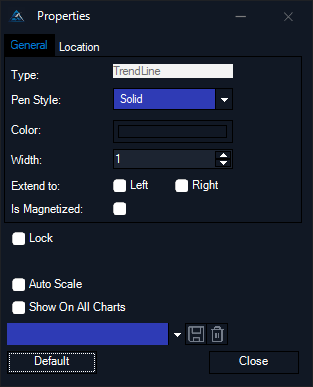
Double-clicking on the drawing object in a chart will open the Properties dialog window, enabling adjustment of its parameters. This dialog window already displays the current settings of the selected drawing object. Once the settings are modified, they will be immediately applied to the current drawing object.

<figure><img src="https://2105664868-files.gitbook.io/~/files/v0/b/gitbook-x-prod.appspot.com/o/spaces%2FSb9KiaeLmZhUGHJdWN19%2Fuploads%2F6Oaphc8cmwDWVhUS3TtS%2FSnag_76aeda50.png?alt=media&#x26;token=35dec83a-8f6b-4206-9231-cc7a8e6d5d9f" alt=""><figcaption></figcaption></figure>

When the chart contains multiple drawing objects, it is unnecessary to open a new dialog window to modify the settings of other objects. Simply select the desired drawing object, and the dialog window will automatically update accordingly. In the previous instance, a trend line was chosen as a drawing tool. Upon selecting the Fibonacci Retracements, the following dialog window will be displayed:

<figure><img src="https://2105664868-files.gitbook.io/~/files/v0/b/gitbook-x-prod.appspot.com/o/spaces%2FSb9KiaeLmZhUGHJdWN19%2Fuploads%2FohbJtRSRqskaa6s98xY7%2FSnag_76b3c077.png?alt=media&#x26;token=376c80d3-91bf-47ef-99e8-d4263c54bec0" alt=""><figcaption></figcaption></figure>

If you press the **Default** button, then standard settings will be applied to drawing objects once more.

Should you wish to visualize drawing objects differently, then you can create a preset drawing object's template in AgenaTrader. Define your parameters and enter a name inside the drop-down box, then either press the **ENTER** button on the keyboard or the <img src="https://2105664868-files.gitbook.io/~/files/v0/b/gitbook-x-prod.appspot.com/o/spaces%2FSb9KiaeLmZhUGHJdWN19%2Fuploads%2Ff5Mejzhs1qDtMsmUkpaf%2FImg_Save.png?alt=media&#x26;token=25333899-7404-4179-8af3-f07806d3be4d" alt="" data-size="line">  button.

<figure><img src="https://2105664868-files.gitbook.io/~/files/v0/b/gitbook-x-prod.appspot.com/o/spaces%2FSb9KiaeLmZhUGHJdWN19%2Fuploads%2Fv095lWI9v8nLdVgVaniC%2FSnag_76b549f5.png?alt=media&#x26;token=2bf68704-bf3c-44ae-8eac-da323a2eca7f" alt=""><figcaption></figcaption></figure>

**To Delete the template** please select from templates list and click <img src="https://2105664868-files.gitbook.io/~/files/v0/b/gitbook-x-prod.appspot.com/o/spaces%2FSb9KiaeLmZhUGHJdWN19%2Fuploads%2FsoLMh1c19WRnMfttbhMi%2FImg_Delete.png?alt=media&#x26;token=71da3c0e-5e45-4fff-aac3-227fff4acd8f" alt="" data-size="line"> button.

<figure><img src="https://2105664868-files.gitbook.io/~/files/v0/b/gitbook-x-prod.appspot.com/o/spaces%2FSb9KiaeLmZhUGHJdWN19%2Fuploads%2FGdbyjMDqzCt9h7EtC12K%2FSnag_76b9b8a9.png?alt=media&#x26;token=203295ba-c7e0-4fee-b06d-0228051d82d6" alt=""><figcaption></figcaption></figure>

Once entered you will see a new submenu with the list of your presets inside the drawing object menu. Additionally, you can assign hot keys to your templates. See more in the [hot keys](https://docs.agenatrader.com/tools/configuration-escort#Configuration_Escort__Hot_Keys) section.&#x20;

By left clicking the horizontal line  price you can manually enter the exact value using the keyboard.

<figure><img src="https://2105664868-files.gitbook.io/~/files/v0/b/gitbook-x-prod.appspot.com/o/spaces%2FSb9KiaeLmZhUGHJdWN19%2Fuploads%2FzpqWVKl3vKfIQKll7Xr0%2FSnag_904691e0.png?alt=media&#x26;token=a323bcd2-3014-4023-a2a7-5e9a2aed9217" alt=""><figcaption></figcaption></figure>

All drawing objects can be copied (Ctrl C ) and pasted (Ctrl V) within a chart or removed (Ctrl Del) from it. The indicators will not be deleted in this case

**Remove Drawings**

<img src="https://2105664868-files.gitbook.io/~/files/v0/b/gitbook-x-prod.appspot.com/o/spaces%2FSb9KiaeLmZhUGHJdWN19%2Fuploads%2FchfslwXt0DXtCIgJVm9q%2FImg_Remove.png?alt=media&#x26;token=00ebe63d-7136-4bfc-b09c-1b1d074fe0a8" alt="" data-size="line"> **Remove Object**: remove selected drawing object&#x20;

<img src="https://2105664868-files.gitbook.io/~/files/v0/b/gitbook-x-prod.appspot.com/o/spaces%2FSb9KiaeLmZhUGHJdWN19%2Fuploads%2FqZTH7WrucvWOBOwHIBiD%2FImg_Remove_all.png?alt=media&#x26;token=d1f9bcd8-2eb0-4e50-b3c6-25a3ec984fd2" alt="" data-size="line"> **Remove All Objects**: remove all drawing objects.

<figure><img src="https://2105664868-files.gitbook.io/~/files/v0/b/gitbook-x-prod.appspot.com/o/spaces%2FSb9KiaeLmZhUGHJdWN19%2Fuploads%2FOWbzLjhd71cwi81rDNUA%2FSnag_90477684.png?alt=media&#x26;token=8addd930-40d9-42bd-930a-c6d26d0f18db" alt=""><figcaption></figcaption></figure>

{% hint style="warning" %}
**Attention!** "Drawing objects only remain in the chart as long as the chart is opened in the workspace. Saving the workspace and shut down AgenaTrader will not remove the drawing objects. However when the chart is closed manually and hence is removed from the workspace all drawing objects will be removed as well and cannot be recovered."
{% endhint %}

#### **Global drawing objects**

**"Enable global drawings" = display drawing objects on all charts**:

<figure><img src="https://2105664868-files.gitbook.io/~/files/v0/b/gitbook-x-prod.appspot.com/o/spaces%2FSb9KiaeLmZhUGHJdWN19%2Fuploads%2FHqP7XEfezASkyeWeaWa0%2FSnag_90481ca7.png?alt=media&#x26;token=554b4278-420e-43c4-a79b-972a94fdc252" alt=""><figcaption></figcaption></figure>

Click on the **Drawing tools** icon followed by the "Enable global drawings" menu item to display drawing objects on all charts. **"Show on all charts" = global display for a single drawing object**:

<figure><img src="https://2105664868-files.gitbook.io/~/files/v0/b/gitbook-x-prod.appspot.com/o/spaces%2FSb9KiaeLmZhUGHJdWN19%2Fuploads%2FfJZETmBwixjQotj8Fn3q%2FSnag_904ab6ca.png?alt=media&#x26;token=ab8f2f87-0c5c-4a3a-a33b-3fd6c74c2df5" alt=""><figcaption></figcaption></figure>

Double click on a drawing object to bring up the dialog box. Within the properties box, enable this functionality for a specific drawing object by checking the **Show on all charts** checkbox. Once enabled, the single drawing object for a particular instrument will be displayed on all charts.

For settings of specific drawing objects you then have to proceed as follows:

* Place the drawing object of your choice in the chart.
* With a double click on this object you brng up the dialog box
* Activate "Show on all all charts" by ticking the check box and then close dialog box.

**And vice versa:**

If you for example have a chart container showing 4 charts (eg. minute, hour, day and week) and you put a drawing object in the daily chart but also want to show it in one or all other charts of this instrument, you will have activate "Show on all charts" in the dialog box of your drawing object. Afterwards - and of course only if this function is not yet activated - you have to activate "Enable global drawings" in every chart you want this drawing object to be shown.

Likewise you can take over the drawing object - yet only within the actual workspace - into another chart container, eg. into the single chart of this instrument.

**"Show Marker" = If activated display drawings markers**:

<figure><img src="https://2105664868-files.gitbook.io/~/files/v0/b/gitbook-x-prod.appspot.com/o/spaces%2FSb9KiaeLmZhUGHJdWN19%2Fuploads%2F4RByMc7xjBhfKw7XHLh4%2FSnag_904c39c1.png?alt=media&#x26;token=43ab0cd9-2b4b-4d3a-ad1b-5bc3a9c088fd" alt=""><figcaption></figcaption></figure>

**Drawing objects in the indicator panel**

You can apply drawing objects to the indicator panel the same way you draw them on the chart.

<figure><img src="https://2105664868-files.gitbook.io/~/files/v0/b/gitbook-x-prod.appspot.com/o/spaces%2FSb9KiaeLmZhUGHJdWN19%2Fuploads%2Fi2GtQH6Ay1Q84RfrV1jU%2FSnag_904de6a5.png?alt=media&#x26;token=f524d992-be43-4c1c-bd53-3cf65ec3841f" alt=""><figcaption></figcaption></figure>

{% hint style="warning" %}
**Attention!** "Trendlines that are created on highter times frames and watched in lower time frames are often missinterpreted. The following picture should clarify why the trend line can differ."
{% endhint %}

<figure><img src="https://docs.agenatrader.com/~gitbook/image?url=https%3A%2F%2F2805764894-files.gitbook.io%2F%7E%2Ffiles%2Fv0%2Fb%2Fgitbook-legacy-files%2Fo%2Fassets%252F-MKZSsJBtSP9L4sqIe_q%252F-MPn3oT4OcTPQ1g6g2-L%252F-MPnFfKSXKDRQnrG53wW%252FTrendline.png%3Falt%3Dmedia%26token%3D10cb0bde-f255-41f4-84e0-2b0f26b429fc&#x26;width=768&#x26;dpr=4&#x26;quality=100&#x26;sign=a54ed0a2&#x26;sv=1" alt=""><figcaption></figcaption></figure>

### Types of drawing objects

In this section, we provide a comprehensive description of all the available drawing objects. Each drawing object is detailed separately to ensure clarity and ease of understanding. Our aim is to give you a thorough insight into the features and functionalities of each object.

#### <img src="https://2105664868-files.gitbook.io/~/files/v0/b/gitbook-x-prod.appspot.com/o/spaces%2FSb9KiaeLmZhUGHJdWN19%2Fuploads%2FmyCuCHQi2o2TBbrQzFNT%2FImg_Drawing_Text.png?alt=media&#x26;token=0aa3b096-9758-4f8b-82f1-c23e5de72428" alt="" data-size="line"> Text <a href="#text" id="text"></a>

Select **Text object** from the list to apply text to the chart.

<figure><img src="https://2105664868-files.gitbook.io/~/files/v0/b/gitbook-x-prod.appspot.com/o/spaces%2FSb9KiaeLmZhUGHJdWN19%2Fuploads%2FXKgRWPRqghkAzTAv9BcH%2FSnag_9050fe46.png?alt=media&#x26;token=ee6c44dc-ae27-4b06-b0ea-1be26cd14e8a" alt=""><figcaption></figcaption></figure>

If you need to add multiline text objects press **Shift+Enter** inside the text object. This enables you to edit the text with a double click.

<figure><img src="https://2105664868-files.gitbook.io/~/files/v0/b/gitbook-x-prod.appspot.com/o/spaces%2FSb9KiaeLmZhUGHJdWN19%2Fuploads%2FYJI2XfUyPlUHBVqN7PT8%2FSnag_9052bef1.png?alt=media&#x26;token=0d1412db-ac75-4129-b8fb-534e46ef4593" alt=""><figcaption></figcaption></figure>

#### <img src="https://2105664868-files.gitbook.io/~/files/v0/b/gitbook-x-prod.appspot.com/o/spaces%2FSb9KiaeLmZhUGHJdWN19%2Fuploads%2FxsrSTmy3MdjO6up4iqaL%2FImg_Drawing_Line.png?alt=media&#x26;token=f2b0cb6e-bc1a-4319-819b-b9ddeea6e16b" alt="" data-size="line"> Line shapes <a href="#line-shapes" id="line-shapes"></a>

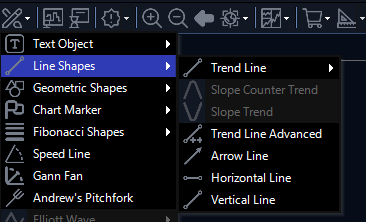
AgenaTrader lets you locate different types of lines in the chart:
<figure><img src="https://2105664868-files.gitbook.io/~/files/v0/b/gitbook-x-prod.appspot.com/o/spaces%2FSb9KiaeLmZhUGHJdWN19%2Fuploads%2F9XwyYw6WEueD6rOXEhaj%2FSnag_9056fd8d.png?alt=media&#x26;token=7682e156-d493-41e4-863a-780f71d8510e" alt=""><figcaption></figcaption></figure>

#### <img src="https://2105664868-files.gitbook.io/~/files/v0/b/gitbook-x-prod.appspot.com/o/spaces%2FSb9KiaeLmZhUGHJdWN19%2Fuploads%2FPj5WouzLYT9X1B8tnUQj%2FImg_Drawing_Line.png?alt=media&#x26;token=8909f1e6-4bc9-46f0-8fca-b11145e78897" alt="" data-size="line"> **Trend line** <a href="#trend-line" id="trend-line"></a>

One of the methods of capturing the price movements is drawing a trend line. The basic principle is simple: the extreme points of "low" prices are connected with each other, creating an uptrend, and the extreme points of "high" prices are connected with each other, creating a downtrend.

<figure><img src="https://2105664868-files.gitbook.io/~/files/v0/b/gitbook-x-prod.appspot.com/o/spaces%2FSb9KiaeLmZhUGHJdWN19%2Fuploads%2F1voTEJtn1o1O74hgAOgD%2FSnag_9058e613.png?alt=media&#x26;token=0b88389b-69a9-4b6a-ab31-d992d3747fca" alt=""><figcaption></figcaption></figure>

#### <img src="https://2105664868-files.gitbook.io/~/files/v0/b/gitbook-x-prod.appspot.com/o/spaces%2FSb9KiaeLmZhUGHJdWN19%2Fuploads%2Fi6ZVDCdFnw5YzsDqnDKw%2FImg_Drawing_LineAdvanced.png?alt=media&#x26;token=ede53cb3-9950-44b1-a73f-faa989b61f34" alt="" data-size="line"> **Trend line advanced** <a href="#trend-line-advanced" id="trend-line-advanced"></a>

This is the advanced version of a trend line, which extends indefinitely into the future. There are two points creating the advanced trend line - a starting point and the second point.

<figure><img src="https://2105664868-files.gitbook.io/~/files/v0/b/gitbook-x-prod.appspot.com/o/spaces%2FSb9KiaeLmZhUGHJdWN19%2Fuploads%2FSdIo3KdIIDY06BNTw25X%2FSnag_905cf1b8.png?alt=media&#x26;token=0a826652-8cc7-4a50-8f83-aa95947b1ec0" alt=""><figcaption></figcaption></figure>

This trend line is automatically placed on the nearest opening, closing, high or low price of a candle. To deactivate this functionality double click on the trend line and then uncheck the **Is magnetized** checkbox inside the properties dialog box.

<figure><img src="https://2105664868-files.gitbook.io/~/files/v0/b/gitbook-x-prod.appspot.com/o/spaces%2FSb9KiaeLmZhUGHJdWN19%2Fuploads%2FprXV8Ente8ecxk48Qsnp%2FSnag_905d8648.png?alt=media&#x26;token=42644128-435a-4b77-9bf6-6ee57ed6cd8c" alt=""><figcaption></figcaption></figure>

*Further drawing possibilities:*

* In order to draw a horizontal line, simply left click in the desired area.
* By default the line will be drawn from left to right but you can change this in the properties dialog box if necessary.

#### <img src="https://2105664868-files.gitbook.io/~/files/v0/b/gitbook-x-prod.appspot.com/o/spaces%2FSb9KiaeLmZhUGHJdWN19%2Fuploads%2Fc0dm03I2AopLXTkEiyyt%2FImg_Drawing_GeometricShapes.png?alt=media&#x26;token=b25f1082-2cf4-4d88-8738-240e608a510e" alt="" data-size="line"> Geometric shapes <a href="#geometric-shapes" id="geometric-shapes"></a>

Various geometric shapes are available within the chart:

<figure><img src="https://2105664868-files.gitbook.io/~/files/v0/b/gitbook-x-prod.appspot.com/o/spaces%2FSb9KiaeLmZhUGHJdWN19%2Fuploads%2FZYeUGdZnr0FgxA7ICXpF%2FSnag_905faf61.png?alt=media&#x26;token=cb3e4512-6af5-47ab-9532-3f1682012cca" alt=""><figcaption></figcaption></figure>

The image below shows several examples of geometric objects applied to the chart:

<figure><img src="https://2105664868-files.gitbook.io/~/files/v0/b/gitbook-x-prod.appspot.com/o/spaces%2FSb9KiaeLmZhUGHJdWN19%2Fuploads%2FgMqQsZydndakz7e4eYqj%2FSnag_9061247d.png?alt=media&#x26;token=db464be6-e46d-4e7a-9122-8ccc53850a3d" alt=""><figcaption></figcaption></figure>

#### <img src="https://2105664868-files.gitbook.io/~/files/v0/b/gitbook-x-prod.appspot.com/o/spaces%2FSb9KiaeLmZhUGHJdWN19%2Fuploads%2FzGL9yZhLDP10IqgiFs2R%2FImg_Drawing_ChartMarker.png?alt=media&#x26;token=c74aaf3d-ff17-46bd-8fa9-228ca34d6754" alt="" data-size="line"> Chart markers <a href="#chart-markers" id="chart-markers"></a>

You can apply the following chart markers to a chart:

<img src="https://2105664868-files.gitbook.io/~/files/v0/b/gitbook-x-prod.appspot.com/o/spaces%2FSb9KiaeLmZhUGHJdWN19%2Fuploads%2FtiELJKNQkCdF8xQZ7pjD%2FImg_Dot.png?alt=media&#x26;token=0dad0b3b-0f02-4099-96fb-891e3048a620" alt="" data-size="line"> Dots

<img src="https://2105664868-files.gitbook.io/~/files/v0/b/gitbook-x-prod.appspot.com/o/spaces%2FSb9KiaeLmZhUGHJdWN19%2Fuploads%2F3MRNdCfQ9bI70AXupqOr%2FImg_Square.png?alt=media&#x26;token=c74b8782-e9ca-4ccf-9df4-85eb27ebe052" alt="" data-size="line"> Squares

<img src="https://2105664868-files.gitbook.io/~/files/v0/b/gitbook-x-prod.appspot.com/o/spaces%2FSb9KiaeLmZhUGHJdWN19%2Fuploads%2FGLfvcf1xU71FNDqEk8Uc%2FImg_Diamond.png?alt=media&#x26;token=88cc7f56-8953-4d9b-8836-3338a67373c0" alt="" data-size="line"> Diamonds

<figure><img src="https://2105664868-files.gitbook.io/~/files/v0/b/gitbook-x-prod.appspot.com/o/spaces%2FSb9KiaeLmZhUGHJdWN19%2Fuploads%2FdpWjVQnP2SUpuXk6jz6z%2FSnag_9062f1fa.png?alt=media&#x26;token=3fc2bc07-2a48-4164-8cfa-dca98151497a" alt=""><figcaption></figcaption></figure>

#### <img src="https://2105664868-files.gitbook.io/~/files/v0/b/gitbook-x-prod.appspot.com/o/spaces%2FSb9KiaeLmZhUGHJdWN19%2Fuploads%2FWzh9Co5SAn4do9pbqjYw%2FImg_Drawing_Fibonacci.png?alt=media&#x26;token=b92f5326-c9e9-4c73-b62b-55385e4ba44a" alt="" data-size="line"> Fibonacci shapes <a href="#fibonacci-shapes" id="fibonacci-shapes"></a>

The Fibonacci sequence was discovered in the 13th century by mathematician Leonardo Fibonacci (Pisano Bogollo). The sequence is as follows: 0,1,1,2,3,5,8,13,21,34,55,89,144,233 and so on. In this sequence, each number (after the first 1) is the sum of the two numbers before it. The interesting characteristic of this sequence is that dividing any number by the following number approximates the ratio 0.618. Dividing any number by the number two places above it (e.g. 5/13) approximates a ratio of 0.382. The larger the numbers, the nearer the approximate value draws to the values 0.382 and 0.618. Other approximate ratios from dividing other numbers are 0.236; 0.5; 0.764; 1.382; 1.618 etc.

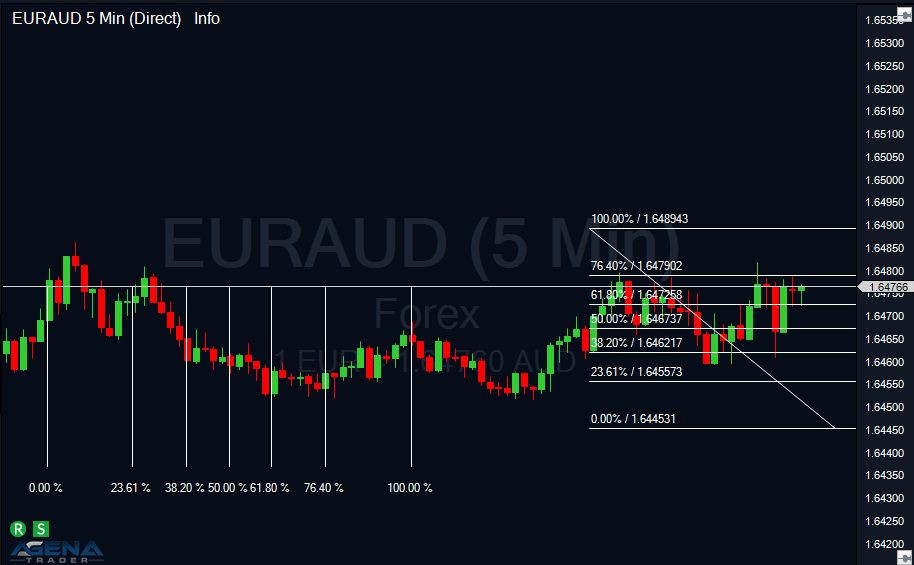
In technical analysis these numbers correspond to retracement levels and provide hints about potential corrections, trend reversal, and areas of resistance or support. Retracements are based on the prior price movements and are used to forecast the length of a trend/correction. The most common Fibonacci levels are 23.6%, 38.2%, 50% and 61.8% . Using Fibonacci retracements in a combination with other technical analysis tools will improve the effectiveness of your trading.

&#x20;<img src="https://2105664868-files.gitbook.io/~/files/v0/b/gitbook-x-prod.appspot.com/o/spaces%2FSb9KiaeLmZhUGHJdWN19%2Fuploads%2FKorb3EvfAcKF1XfFxO3l%2FImg_Fibo_timeZones.png?alt=media&#x26;token=7836ba57-bcc8-402b-b63c-d0464031abb8" alt="" data-size="line">Time zones and  <img src="https://2105664868-files.gitbook.io/~/files/v0/b/gitbook-x-prod.appspot.com/o/spaces%2FSb9KiaeLmZhUGHJdWN19%2Fuploads%2FWzh9Co5SAn4do9pbqjYw%2FImg_Drawing_Fibonacci.png?alt=media&#x26;token=b92f5326-c9e9-4c73-b62b-55385e4ba44a" alt="" data-size="line"> retracements

<figure><img src="https://2105664868-files.gitbook.io/~/files/v0/b/gitbook-x-prod.appspot.com/o/spaces%2FSb9KiaeLmZhUGHJdWN19%2Fuploads%2FYHAkoxbZy0P5Rg1NlsyA%2FSnag_90641982.png?alt=media&#x26;token=59f506be-abb8-4a8f-a6ca-673d78de0fd2" alt=""><figcaption></figcaption></figure>

&#x20;<img src="https://2105664868-files.gitbook.io/~/files/v0/b/gitbook-x-prod.appspot.com/o/spaces%2FSb9KiaeLmZhUGHJdWN19%2Fuploads%2FQB9syg4rxpQy4RDJDNG0%2FImg_Fibo_fan.png?alt=media&#x26;token=93bf7efa-9902-4a6a-8911-0dd9e3e9ca10" alt="" data-size="line"> Fans and  <img src="https://2105664868-files.gitbook.io/~/files/v0/b/gitbook-x-prod.appspot.com/o/spaces%2FSb9KiaeLmZhUGHJdWN19%2Fuploads%2FSFM8bKhAkjApgUnBEtyu%2FImg_Fibo_circle.png?alt=media&#x26;token=54d83a5d-36e7-4cdb-9895-8c9b7e9fbe4f" alt="" data-size="line"> arcs

<figure><img src="https://2105664868-files.gitbook.io/~/files/v0/b/gitbook-x-prod.appspot.com/o/spaces%2FSb9KiaeLmZhUGHJdWN19%2Fuploads%2Ff7nZeT1pQ1tVQfpkhqPb%2FSnag_90657be1.png?alt=media&#x26;token=3c5e810a-b06a-4fd4-97f8-a540c8a6613e" alt=""><figcaption></figcaption></figure>

<img src="https://2105664868-files.gitbook.io/~/files/v0/b/gitbook-x-prod.appspot.com/o/spaces%2FSb9KiaeLmZhUGHJdWN19%2Fuploads%2FWzh9Co5SAn4do9pbqjYw%2FImg_Drawing_Fibonacci.png?alt=media&#x26;token=b92f5326-c9e9-4c73-b62b-55385e4ba44a" alt="" data-size="line"> Projections

Correct use of Projections: select the **Projection** and select the first point in the chart. Press and hold the left mouse button and navigate to the next point in the chart and release the mouse button. Finish the projection by navigating to the last point in the chart and click the left mouse button again. If you don't hold the mouse button in the beginning the projection will not be displayed properly.

<figure><img src="https://2105664868-files.gitbook.io/~/files/v0/b/gitbook-x-prod.appspot.com/o/spaces%2FSb9KiaeLmZhUGHJdWN19%2Fuploads%2Fqffig6DBgvdBjvM85w8U%2FSnag_9066aa4f.png?alt=media&#x26;token=62daa850-4008-48bb-87fc-6e36bb9bd36c" alt=""><figcaption></figcaption></figure>

**Extended dialog**

You can change Fibonacci levels, color, and line style inside the extended dialog window for this drawing object:

<figure><img src="https://2105664868-files.gitbook.io/~/files/v0/b/gitbook-x-prod.appspot.com/o/spaces%2FSb9KiaeLmZhUGHJdWN19%2Fuploads%2FXBeJTmYLXSOtemJpaiwt%2FSnag_90675b7e.png?alt=media&#x26;token=708421af-4aee-4c24-93ae-87d6f2e12a73" alt=""><figcaption></figcaption></figure>

The extended dialog window offers the selection of the following possibilities:

| Function            | Meaning                                                                        |
| ------------------- | ------------------------------------------------------------------------------ |
| Right Aligned       | If enabled, this extends the Fibonacci levels to the right of the screen.      |
| Is Magnetized       | If enabled, the anchor lines are magnetized when drawing the Fibonacci levels. |
| Display Percents    | If enabled, shows percentages                                                  |
| Display Price       | If enabled, shows a price                                                      |
| Extend Left         | If enabled, extends lines to the left                                          |
| Extend Right        | If enabled, extends lines to the right                                         |
| Display Anchor Line | If enabled, displays an anchor line                                            |
| Lock                | If enabled, prevents you from making changes                                   |
| Auto Scale          | If enabled, scales the object automatically                                    |
| Show On All Charts  | If enabled, shows Fibonacci drawing object on all charts                       |

**Delete the whole object or single levels** After the drawing object has been created it can be selected by the left mouse click and deleted by pressing the **Del** button on the keyboard. Besides, you can delete a single object level by pressing and holding the **Shift** button on the keyboard and left clicking the mouse button.

{% hint style="warning" %}
**Attention!** AgenaTrader saves the settings of the latest drawing object, therefore a new object will be displayed in the same manner. It means that deleted levels will not be shown anymore when using a new Fibonacci object. In order to activate the display of all levels double-click on the object and edit the object settings manually inside the popup.
{% endhint %}

<figure><img src="https://2105664868-files.gitbook.io/~/files/v0/b/gitbook-x-prod.appspot.com/o/spaces%2FSb9KiaeLmZhUGHJdWN19%2Fuploads%2F4aMvERjUwqcPz0VVJX2U%2FSnag_90682565.png?alt=media&#x26;token=cee8be41-98ec-48ec-85ab-7ddfeec17446" alt=""><figcaption></figcaption></figure>

#### <img src="https://2105664868-files.gitbook.io/~/files/v0/b/gitbook-x-prod.appspot.com/o/spaces%2FSb9KiaeLmZhUGHJdWN19%2Fuploads%2FKP0kJhpZ0C3opfXjPfnp%2FImg_SpeedLines.png?alt=media&#x26;token=784eda96-8e67-4de4-9c2f-fdb5f16484ea" alt="" data-size="line"> Speed Resistance Line <a href="#speed-resistance-line" id="speed-resistance-line"></a>

Speed resistance lines serve to estimate potential areas of support or resistance. The tool was developed by Edson Gould and is similar to the Gann Fan or the Fibonacci Fan. Speed resistance lines consist of three trend lines; the first line extends from a low to a high (uptrend) or from a high to a low (downtrend). The other resistance lines are displayed below (or above) at 1/3 and 2/3 intervals of the original line.

<figure><img src="https://2105664868-files.gitbook.io/~/files/v0/b/gitbook-x-prod.appspot.com/o/spaces%2FSb9KiaeLmZhUGHJdWN19%2Fuploads%2FdJbeo0j2LOdHOT6i7AJO%2FSnag_9069cab9.png?alt=media&#x26;token=c22d387f-5282-4f33-83fb-72628194af98" alt=""><figcaption></figcaption></figure>

#### <img src="https://2105664868-files.gitbook.io/~/files/v0/b/gitbook-x-prod.appspot.com/o/spaces%2FSb9KiaeLmZhUGHJdWN19%2Fuploads%2Fi42hVsy9gmjW7kcLCtnr%2FImg_Fibo_fan.png?alt=media&#x26;token=454de5e2-1aa9-4544-b8b9-07ad7eecf353" alt="" data-size="line"> Gann Fan Up / Gann Fan Down <a href="#gann-fan-up-gann-fan-down" id="gann-fan-up-gann-fan-down"></a>

The Gann Fan is an analytical tool developed by professional broker W\.D. Gann. It shows how prices that have originated from significant highs or lows have developed over time, and can help to identify potential trend reversals or to predict price movements. The lines extend from one point (high or low) dividing the charting area into proportional parts. Gann considered the prime line (1x1 = 45°) to be the most important. If the current price is above the 45° line this indicates a bull market, and if it is below the 45° line this indicates a bear market. Gann interprets the 1x1 line (45°) as a strong support or resistance line (depending which direction the market is moving in).

*Other important Gann angles:* 1x8 - 82.5 degrees 1x4 - 75 degrees 1x3 - 71.25 degrees 1x2 - 63.75 degrees 1x1 - 45 degrees 2x1 - 26.25 degrees 3x1 - 18.75 degrees 4x1 - 15 degrees 8x1 - 7.5 degrees

The following image shows the Gann Fan applied to the chart:

<figure><img src="https://2105664868-files.gitbook.io/~/files/v0/b/gitbook-x-prod.appspot.com/o/spaces%2FSb9KiaeLmZhUGHJdWN19%2Fuploads%2F8nZx3i8WhirROv3V96FX%2F%D0%B7%D0%BE%D0%B1%D1%80%D0%B0%D0%B6%D0%B5%D0%BD%D0%BD%D1%8F.png?alt=media&#x26;token=398e2a4c-6e82-4bcb-99b3-b03840c2d04e" alt=""><figcaption></figcaption></figure>

#### <img src="https://2105664868-files.gitbook.io/~/files/v0/b/gitbook-x-prod.appspot.com/o/spaces%2FSb9KiaeLmZhUGHJdWN19%2Fuploads%2FIWvkrUrSMEUyJJYKfzve%2FImg_Pitcfork.png?alt=media&#x26;token=fe86bf59-11ee-4586-bfa2-90e595f7d24a" alt="" data-size="line"> Andrew's Pitchfork <a href="#andrews-pitchfork" id="andrews-pitchfork"></a>

Andrew’s Pitchfork is not a primary but a supplementary tool in trading, since it is not as commonly used on a daily basis as other indicators (trend lines, regression channels etc.). Nevertheless, Andrew's Pitchfork can be used as a supporting indicator to solidify existing analyses. Andrew's Pitchfork was developed by Dr. Alan Andrews decades ago, and consists of three parallel trend lines that extend into the charting space. The composition of the lines resembles a pitchfork, which gives this instrument its name. The lower and upper line represent zones of support and resistance.

<figure><img src="https://2105664868-files.gitbook.io/~/files/v0/b/gitbook-x-prod.appspot.com/o/spaces%2FSb9KiaeLmZhUGHJdWN19%2Fuploads%2FKOtKWIHn5bqAPFPT9ht2%2F%D0%B7%D0%BE%D0%B1%D1%80%D0%B0%D0%B6%D0%B5%D0%BD%D0%BD%D1%8F.png?alt=media&#x26;token=0a42b6ea-5c41-4043-b214-95417fab6012" alt=""><figcaption></figcaption></figure>

You can apply this drawing object to the chart in all time intervals. In an uptrend, the lower line acts as a support line, the middle line defines the strength of a trend and the upper line acts as a resistance line. 'Swing' traders developed Andrew's Pitchfork even further by drawing the additional parallel line between the support and resistance lines. This line is used each time the price reaches the corresponding support or resistance line.

#### <img src="https://2105664868-files.gitbook.io/~/files/v0/b/gitbook-x-prod.appspot.com/o/spaces%2FSb9KiaeLmZhUGHJdWN19%2Fuploads%2FqsVgq1nAwfaQYnxWubIM%2FImg_Tirone.png?alt=media&#x26;token=9e3f82cf-57ac-426a-8819-ff44e5b663b3" alt="" data-size="line"> Tirone Levels <a href="#tirone-levels" id="tirone-levels"></a>

Tirone levels (developed by John Tirone) are a series of three horizontal lines that, like the Fibonacci levels or quadrant lines, represent support or resistance levels. The calculation of Tirone levels is based upon the lowest low and the highest high during a specified time interval:

* The middle line is calculated as the difference between the high and low points divided by 2.
* The upper line is calculated as the difference between the high and low points divided by 3.
* The lower line is the difference between the high and low points adjusted by the coefficient 2/3.

<figure><img src="https://2105664868-files.gitbook.io/~/files/v0/b/gitbook-x-prod.appspot.com/o/spaces%2FSb9KiaeLmZhUGHJdWN19%2Fuploads%2FUSrQ2riVrZ9auYxNEkhK%2F%D0%B7%D0%BE%D0%B1%D1%80%D0%B0%D0%B6%D0%B5%D0%BD%D0%BD%D1%8F.png?alt=media&#x26;token=9f086a26-6edb-4d75-870c-44eefbec3e19" alt=""><figcaption></figcaption></figure>

#### <img src="https://2105664868-files.gitbook.io/~/files/v0/b/gitbook-x-prod.appspot.com/o/spaces%2FSb9KiaeLmZhUGHJdWN19%2Fuploads%2Fg7wBbreU1nLngaKJRLmZ%2FImg_QuadLines.png?alt=media&#x26;token=8319ec55-c155-49a2-a4b4-6eec8ad5b593" alt="" data-size="line"> Quadrant Lines <a href="#quadrant-lines" id="quadrant-lines"></a>

Quadrant lines divide the price area into four equally sized areas. There are five lines and four quadrants, which are calculated as follows:

* The upper line corresponds to the high price
* The lower line corresponds to the low price
* The middle line retraces 50% of the price range.
* The other two lines are calculated as a sum of the previous line level and quadrant size.

The quadrant lines are not considered to be a typical indicator, but more of a stick of price action. The lines allow a technical analyst to visualize the quantification of price levels relative to the price range.

<figure><img src="https://2105664868-files.gitbook.io/~/files/v0/b/gitbook-x-prod.appspot.com/o/spaces%2FSb9KiaeLmZhUGHJdWN19%2Fuploads%2FXP60bEYsunuDA11JgjjV%2F%D0%B7%D0%BE%D0%B1%D1%80%D0%B0%D0%B6%D0%B5%D0%BD%D0%BD%D1%8F.png?alt=media&#x26;token=f506d9ac-1c63-4c73-875d-4e5b3d996894" alt=""><figcaption></figcaption></figure>

#### <img src="https://2105664868-files.gitbook.io/~/files/v0/b/gitbook-x-prod.appspot.com/o/spaces%2FSb9KiaeLmZhUGHJdWN19%2Fuploads%2FDQujMrIQsE4Yxn53JQtP%2FImg_RaffRegression.png?alt=media&#x26;token=745adcc2-a901-4065-bdb6-d105a4a7d891" alt="" data-size="line"> Raff Regression Channel <a href="#raff-regression-channel" id="raff-regression-channel"></a>

The Raff regression channel is a linear regression tool consisting of a line fitting the price series as closely as possible, as estimated by the ordinal least squares (OLS) method, and two lines of equal distance from this line.

This drawing object will be applied to the chart in the following way:

* First, a straight line for the closing prices is drawn using the OLS approach. This method allows you to place the regression line in such a way that the distance from this line to each closing price is minimal. In other words, the regression line represents the best fit for closing prices for the considered period.
* Once the line is estimated, the first parallel line is shifted to the first high or low point.
* In the next step, the second trend line is drawn on the other side of the regression line so that the distance between the regression line and both trend lines is equal. Thus, the regression line is drawn exactly in the middle of the falling trend channel.

<figure><img src="https://2105664868-files.gitbook.io/~/files/v0/b/gitbook-x-prod.appspot.com/o/spaces%2FSb9KiaeLmZhUGHJdWN19%2Fuploads%2FpkRj9wKGDTqXUoxc8vpl%2F%D0%B7%D0%BE%D0%B1%D1%80%D0%B0%D0%B6%D0%B5%D0%BD%D0%BD%D1%8F.png?alt=media&#x26;token=726bcc71-99c3-47ba-833e-80771aff1f8c" alt=""><figcaption></figcaption></figure>

Now the regression channel consisting of 3 lines is complete and much more precise than if you were to draw this manually.

#### <img src="https://2105664868-files.gitbook.io/~/files/v0/b/gitbook-x-prod.appspot.com/o/spaces%2FSb9KiaeLmZhUGHJdWN19%2Fuploads%2FvCxTW1ZLMMsQExUJq4oN%2FImg_ErrorChannels.png?alt=media&#x26;token=97c883e3-2c9a-4bcf-9635-6219439fbf7f" alt="" data-size="line"> Trend channel <a href="#trend-channel" id="trend-channel"></a>

The trend channel can be drawn by hand. To apply this drawing object to a chart, select a low or high point on the chart and connect this to another low or high point. The opposite parallel line will be adjusted accordingly.

<figure><img src="https://2105664868-files.gitbook.io/~/files/v0/b/gitbook-x-prod.appspot.com/o/spaces%2FSb9KiaeLmZhUGHJdWN19%2Fuploads%2FOw2OmCIeyqWaLvgzklHE%2F%D0%B7%D0%BE%D0%B1%D1%80%D0%B0%D0%B6%D0%B5%D0%BD%D0%BD%D1%8F.png?alt=media&#x26;token=c9f13b95-0fe0-4132-946b-261322fd1a06" alt=""><figcaption></figcaption></figure>

#### <img src="https://2105664868-files.gitbook.io/~/files/v0/b/gitbook-x-prod.appspot.com/o/spaces%2FSb9KiaeLmZhUGHJdWN19%2Fuploads%2F7jY8qQdE2wyXrl0Tv7z1%2FImg_Drawing_Freehand.png?alt=media&#x26;token=16e0fe0e-5b2d-4fdf-a74f-365ab4951f6c" alt="" data-size="line"> Free Hand Drawing <a href="#free-hand-drawing" id="free-hand-drawing"></a>

Use the **Free Hand Drawing** option to make various markings on a chart.

<figure><img src="https://2105664868-files.gitbook.io/~/files/v0/b/gitbook-x-prod.appspot.com/o/spaces%2FSb9KiaeLmZhUGHJdWN19%2Fuploads%2FPHUvrV7HxO0waoKAq27d%2F%D0%B7%D0%BE%D0%B1%D1%80%D0%B0%D0%B6%D0%B5%D0%BD%D0%BD%D1%8F.png?alt=media&#x26;token=d64f9a63-52c7-49a2-85dc-cdd098c45e83" alt=""><figcaption></figcaption></figure>

#### <img src="https://2105664868-files.gitbook.io/~/files/v0/b/gitbook-x-prod.appspot.com/o/spaces%2FSb9KiaeLmZhUGHJdWN19%2Fuploads%2FKGXUgyPXhwU5cUJu5pR5%2FImg_Drawing_Ruler.png?alt=media&#x26;token=e925bdb1-685d-4498-abfd-5912149e439a" alt="" data-size="line">Chart distance meter <a href="#chart-distance-meter" id="chart-distance-meter"></a>

Use the **Chart distance meter** option to increase or decrease the distance from price, bars & percent.

<figure><img src="https://2105664868-files.gitbook.io/~/files/v0/b/gitbook-x-prod.appspot.com/o/spaces%2FSb9KiaeLmZhUGHJdWN19%2Fuploads%2FeccfgCJWqaSBxOgWsb5j%2F%D0%B7%D0%BE%D0%B1%D1%80%D0%B0%D0%B6%D0%B5%D0%BD%D0%BD%D1%8F.png?alt=media&#x26;token=a31094c4-2e1c-4bb4-9e33-11f119f61287" alt=""><figcaption></figcaption></figure>

## <img src="https://2105664868-files.gitbook.io/~/files/v0/b/gitbook-x-prod.appspot.com/o/spaces%2FSb9KiaeLmZhUGHJdWN19%2Fuploads%2Fa4mqhmJHbGUgtDvAqAbr%2FImg_IndicatorColumns.png?alt=media&#x26;token=736e1b66-c287-4773-b0e7-661f0874ab37" alt="" data-size="line"> Indicators

This section provides a way for you to create, edit and apply various indicators to the chart. More detailed descriptions of indicators can be found on our [Github indicator help](https://agenatrader.github.io/AgenaIndicator-documentation/index.html).

*In order to apply indicators to a chart use one of the options:*

1. Left click on the <img src="https://2105664868-files.gitbook.io/~/files/v0/b/gitbook-x-prod.appspot.com/o/spaces%2FSb9KiaeLmZhUGHJdWN19%2Fuploads%2FgC7oMN8FcBq2Dntqbwz2%2FImg_IndicatorColumns.png?alt=media&#x26;token=b3eba53b-6bc6-4b68-b129-0dcb65a44369" alt="" data-size="line"> icon within the chart toolbar.
2. Right click in the charting area to bring up the chart
   1. context menu, then select **Settings** followed by the **Indicators** menu item.

This will open the **Indicators popup window**, which contains 5 different lists:

<figure><img src="https://2105664868-files.gitbook.io/~/files/v0/b/gitbook-x-prod.appspot.com/o/spaces%2FSb9KiaeLmZhUGHJdWN19%2Fuploads%2FsXwZOtKyYWpzLYTv0k5L%2F%D0%B7%D0%BE%D0%B1%D1%80%D0%B0%D0%B6%D0%B5%D0%BD%D0%BD%D1%8F.png?alt=media&#x26;token=4111e536-295f-4255-978b-e9cd86884f27" alt=""><figcaption></figcaption></figure>

| Name | Description |
| ---- | ----------- |

| Indicators | Shows standard indicators integrated into the AgenaTrader trading platform |
| ---------- | -------------------------------------------------------------------------- |

| Premium indicators | Shows indicators from add-on packages |
| ------------------ | ------------------------------------- |

| [Custom](https://docs.agenatrader.com/create-your-own-trading-strategy/scripting#Scripting__Programming_of_indicators) | Shows self-programmed or imported indicators |
| ---------------------------------------------------------------------------------------------------------------------- | -------------------------------------------- |

| [Conditions](https://docs.agenatrader.com/create-your-own-trading-strategy/condition-escort) | Shows conditions entered in the Signal Builder |
| -------------------------------------------------------------------------------------------- | ---------------------------------------------- |

| [Scripted conditions](https://docs.agenatrader.com/create-your-own-trading-strategy/scripting#Scripting__Programming_of_conditions) | Shows self-programmed conditions |
| ----------------------------------------------------------------------------------------------------------------------------------- | -------------------------------- |

{% hint style="info" %}
**Important!** If you want to find out more about each specific indicator, you can find detailed description [here](https://agenatrader.github.io/AgenaIndicator-documentation/index.html)
{% endhint %}

The dialog window consists of three parts:

1. List of available indicators
2. List of selected indicators
3. Parameters box

The buttons inside the popup window have the following functions:

* ОК: accepts all defined settings and closes the dialog window.
* Apply: accepts all settings but does not close the dialog window.
* Cancel: closes the dialog window without saving the changes.

Please note:

<figure><img src="https://2105664868-files.gitbook.io/~/files/v0/b/gitbook-x-prod.appspot.com/o/spaces%2FSb9KiaeLmZhUGHJdWN19%2Fuploads%2F41pi4xBISXlzG4DGf4yu%2F%D0%B7%D0%BE%D0%B1%D1%80%D0%B0%D0%B6%D0%B5%D0%BD%D0%BD%D1%8F.png?alt=media&#x26;token=13d568ce-8dd0-4d2f-bb39-48839b5884c5" alt=""><figcaption></figcaption></figure>

Show Candles At Front: if this function is activated, all indicators are displayed behind the chart candles or other styles.

### List of available indicators <a href="#list_of_available_indicators" id="list_of_available_indicators"></a>

The list of available indicators can be found within the three sections of the **Indicators window**.

For better performance user may use Indicator Search function. You can search indicators through subcategories:

<figure><img src="https://2105664868-files.gitbook.io/~/files/v0/b/gitbook-x-prod.appspot.com/o/spaces%2FSb9KiaeLmZhUGHJdWN19%2Fuploads%2F3AKsG0Nsvx86SMjkBdsu%2F%D0%B7%D0%BE%D0%B1%D1%80%D0%B0%D0%B6%D0%B5%D0%BD%D0%BD%D1%8F.png?alt=media&#x26;token=ac00cce8-4dd1-40a0-a743-6445b457aa06" alt=""><figcaption></figcaption></figure>

*The list is divided into the following subcategories:*

* **Standard system indicators** (AgenaTrader offers approx.100 standard indicators),
* **Cumulative Indices.** Only displayed and can be added to the chart if connected to one of the following datafeeds: Taipan, IQFeed or Barchart. They display an oscillator of cumulated data of the specific index.

<figure><img src="https://docs.agenatrader.com/~gitbook/image?url=https%3A%2F%2F2805764894-files.gitbook.io%2F%7E%2Ffiles%2Fv0%2Fb%2Fgitbook-legacy-files%2Fo%2Fassets%252F-MKZSsJBtSP9L4sqIe_q%252F-MPnJBQf73uIOGhK2XwX%252F-MPnKZGrLaoopU0wQm-2%252FCumulative%2520indices.png%3Falt%3Dmedia%26token%3D31ac3712-41a4-4f64-9cae-acb8fd8eed7d&#x26;width=768&#x26;dpr=4&#x26;quality=100&#x26;sign=d5e22cae&#x26;sv=1" alt=""><figcaption></figcaption></figure>

* **Premium indicators**
* **Scripted indicators** (self-programmed),
* **Conditions in the** Signal Builder
* **Scripted condition**

<figure><img src="https://2105664868-files.gitbook.io/~/files/v0/b/gitbook-x-prod.appspot.com/o/spaces%2FSb9KiaeLmZhUGHJdWN19%2Fuploads%2FsXwZOtKyYWpzLYTv0k5L%2F%D0%B7%D0%BE%D0%B1%D1%80%D0%B0%D0%B6%D0%B5%D0%BD%D0%BD%D1%8F.png?alt=media&#x26;token=4111e536-295f-4255-978b-e9cd86884f27" alt=""><figcaption></figcaption></figure>

Double click on a selected indicator would add it to indicator list.

### List of selected indicators <a href="#list_of_selected_indicators" id="list_of_selected_indicators"></a>

This section displays all indicators and conditions applied to the chart or just added from the list of available indicators.

<figure><img src="https://2105664868-files.gitbook.io/~/files/v0/b/gitbook-x-prod.appspot.com/o/spaces%2FSb9KiaeLmZhUGHJdWN19%2Fuploads%2FkySAxsq41by8KXONyOJn%2F%D0%B7%D0%BE%D0%B1%D1%80%D0%B0%D0%B6%D0%B5%D0%BD%D0%BD%D1%8F.png?alt=media&#x26;token=98d0c251-cf0a-4e4c-8a86-05ce0cd255de" alt=""><figcaption></figcaption></figure>

Click the **Remove** button to delete an indicator from this list. Left clicking on an indicator will make it "active" in the parameters section and allow you to modify parameters. Click the **OK** or **Apply** button to save new settings for an indicator and apply it to the chart.

### Parameters box <a href="#parameters_box" id="parameters_box"></a>

The parameter box on the right hand side of the **Parameter window** displays the indicator-specific settings that are available for editing.

<figure><img src="https://2105664868-files.gitbook.io/~/files/v0/b/gitbook-x-prod.appspot.com/o/spaces%2FSb9KiaeLmZhUGHJdWN19%2Fuploads%2FJBEpA2LVgNIbaGl0Tcne%2F%D0%B7%D0%BE%D0%B1%D1%80%D0%B0%D0%B6%D0%B5%D0%BD%D0%BD%D1%8F.png?alt=media&#x26;token=eff72bfc-747f-4e35-9fd9-4384dc93dbfc" alt=""><figcaption></figcaption></figure>

In this section we will see which parameters can be changed within the parameter box.

#### General settings <a href="#general-settings" id="general-settings"></a>

You can change the following parameters:

* **Auto adjusted:** Default setting is "false". In this case the indicator will be displayed inside a separate panel below the chart. If set to "true", the indicator is a part of the chart panel's scaling and is always fully visible on the chart. This means that if the indicator's extreme values are far away from the market value, then the chart display will be adjusted in such a way as to show the indicator completely.

<figure><img src="https://docs.agenatrader.com/~gitbook/image?url=https%3A%2F%2F2805764894-files.gitbook.io%2F%7E%2Ffiles%2Fv0%2Fb%2Fgitbook-legacy-files%2Fo%2Fassets%252F-MKZSsJBtSP9L4sqIe_q%252F-MPnJBQf73uIOGhK2XwX%252F-MPnKqIq8RzrLOcaImlO%252FparameterBox3.png%3Falt%3Dmedia%26token%3Dcee138a2-93fb-435c-af6a-a6cfb04c95df&#x26;width=768&#x26;dpr=4&#x26;quality=100&#x26;sign=50490d84&#x26;sv=1" alt=""><figcaption></figcaption></figure>

* **Calc. on finished Bars:** allows to change the calculation mode from close price to every new tick. If set to "false" **Calculation Updates Times Frame** parameter appears which allows selecting a timeframe in which the indicator is re-calculated. If set to "true", AgenaTrader will calculate the indicator each time a bar has been closed and the next tick is sent.

{% hint style="warning" %}
**ATTENTION!** the calculation of some (especially self-programmed) indicators can be quite complex. If your workspace contains too many indicators with **Calculate on bar close** set to "false", AgenaTrader's performance may be negatively affected.
{% endhint %}

* **Caption:** displays the technical descriptions. You can change these settings if required. For example, to display a shorter name for an indicator (BB-W instead of BBWidth) input the following information: (Close, 2, 20) -> BB-W.
* **Display in Chart Box:** if set to "true", the indicator values will be displayed in the chart box when you left click on the chart.

<figure><img src="https://2105664868-files.gitbook.io/~/files/v0/b/gitbook-x-prod.appspot.com/o/spaces%2FSb9KiaeLmZhUGHJdWN19%2Fuploads%2FumQfLkI5zWm21h1WJTfr%2F%D0%B7%D0%BE%D0%B1%D1%80%D0%B0%D0%B6%D0%B5%D0%BD%D0%BD%D1%8F.png?alt=media&#x26;token=f827a172-befd-4a27-9fe4-d7651b341a05" alt=""><figcaption></figcaption></figure>

* **Left/Right shifting:** shifts the indicator to the left or right.
* **Bars required:** defines the number of periods after which the indicator will be shown. For example, SMA(20) requires at least 20 periods (bars) to correctly calculate the moving average.
* **Show price scale markers :** if set to "true", the indicator values within the price scale on the right side of the chart will be shown in color.

<figure><img src="https://2105664868-files.gitbook.io/~/files/v0/b/gitbook-x-prod.appspot.com/o/spaces%2FSb9KiaeLmZhUGHJdWN19%2Fuploads%2FqZoCbPh9Uxa1PbcrhTIi%2F%D0%B7%D0%BE%D0%B1%D1%80%D0%B0%D0%B6%D0%B5%D0%BD%D0%BD%D1%8F.png?alt=media&#x26;token=826a6200-d8ce-42de-88ce-13d53c34c673" alt=""><figcaption></figcaption></figure>

#### Input settings <a href="#input-settings" id="input-settings"></a>

You can change the following parameters:

* **InSeries:** allows you to select data series for which the indicator should be calculated. The standard setting is "close", which means that the indicator will be calculated based on the closing prices of a specific period. Other available options are displayed below::

<figure><img src="https://2105664868-files.gitbook.io/~/files/v0/b/gitbook-x-prod.appspot.com/o/spaces%2FSb9KiaeLmZhUGHJdWN19%2Fuploads%2FrENJSqNL5fEuV6h8SNnu%2F%D0%B7%D0%BE%D0%B1%D1%80%D0%B0%D0%B6%D0%B5%D0%BD%D0%BD%D1%8F.png?alt=media&#x26;token=557c8cb1-a6c0-4ce0-b691-e8a956d3c268" alt=""><figcaption></figcaption></figure>

This image displays the settings for calculating the Bollinger Bands indicator based on RSI values:

<figure><img src="https://2105664868-files.gitbook.io/~/files/v0/b/gitbook-x-prod.appspot.com/o/spaces%2FSb9KiaeLmZhUGHJdWN19%2Fuploads%2F3tiTaIgsQLaTC1wXmgRL%2F%D0%B7%D0%BE%D0%B1%D1%80%D0%B0%D0%B6%D0%B5%D0%BD%D0%BD%D1%8F.png?alt=media&#x26;token=a423fac7-bde6-4de3-9df4-01ed76f8808c" alt=""><figcaption></figcaption></figure>

Once you have confirmed the changes, the RSI indicator will be displayed in the same panel as the Bollinger band:

<figure><img src="https://2105664868-files.gitbook.io/~/files/v0/b/gitbook-x-prod.appspot.com/o/spaces%2FSb9KiaeLmZhUGHJdWN19%2Fuploads%2Fzz1Gz0hHLTUM8gsLv1f8%2F%D0%B7%D0%BE%D0%B1%D1%80%D0%B0%D0%B6%D0%B5%D0%BD%D0%BD%D1%8F.png?alt=media&#x26;token=496a1f2d-3c7a-4c8b-a314-41833d1cfcf2" alt=""><figcaption></figcaption></figure>

* **Instrument:** allows you to select a data series from a different instrument for which the indicator should be calculated. The default setting corresponds to the instrument for which the indicator was selected.
* **Time-Frame:** allows you to display the indicator for the current instrument within different time frames on the same chart. For example, on the 1-day EURUSD chart, the same indicator SMA(14) is displayed in two time frames simultaneously: 1 hour and 1 week.

<figure><img src="https://docs.agenatrader.com/~gitbook/image?url=https%3A%2F%2F2805764894-files.gitbook.io%2F%7E%2Ffiles%2Fv0%2Fb%2Fgitbook-legacy-files%2Fo%2Fassets%252F-MKZSsJBtSP9L4sqIe_q%252F-MPnJBQf73uIOGhK2XwX%252F-MPnLPbfBIgZLWj7t_kw%252FparameterBox10.png%3Falt%3Dmedia%26token%3D5dacc0c4-5c1c-4d96-ada1-ea618b189322&#x26;width=768&#x26;dpr=4&#x26;quality=100&#x26;sign=27a8a2de&#x26;sv=1" alt=""><figcaption></figcaption></figure>

#### Parameters settings <a href="#parameters-settings" id="parameters-settings"></a>

These settings display indicator-specific parameters. If you change the values here, the behavior of the indicator also changes.

<figure><img src="https://2105664868-files.gitbook.io/~/files/v0/b/gitbook-x-prod.appspot.com/o/spaces%2FSb9KiaeLmZhUGHJdWN19%2Fuploads%2FXN4uLVD891gLcOTBYQyc%2F%D0%B7%D0%BE%D0%B1%D1%80%D0%B0%D0%B6%D0%B5%D0%BD%D0%BD%D1%8F.png?alt=media&#x26;token=fb1a9630-a408-4c07-b80a-0a8c95211595" alt=""><figcaption></figcaption></figure>

#### Visual settings <a href="#visual-settings" id="visual-settings"></a>

These settings allow you to customize the appearance of the indicator.

You can change the following parameters:

* **Levels:** allow you to edit the indicator lines by setting the following parameters:
  * Appearance (dotted, striped, etc.)
  * Color
  * Width
  * Line value

<figure><img src="https://2105664868-files.gitbook.io/~/files/v0/b/gitbook-x-prod.appspot.com/o/spaces%2FSb9KiaeLmZhUGHJdWN19%2Fuploads%2FWSv6yaT1tsjyT9uTB56F%2Fimage.png?alt=media&#x26;token=7eeae8cc-a36f-4030-81ee-bf58584b2dd6" alt=""><figcaption></figcaption></figure>

* **Chart Panel:** allows you to customize the appearance and style of specific indicators and to display several indicators within the same panel.

<figure><img src="https://2105664868-files.gitbook.io/~/files/v0/b/gitbook-x-prod.appspot.com/o/spaces%2FSb9KiaeLmZhUGHJdWN19%2Fuploads%2FtiqYwvPuyLiAXwMrvyMQ%2F%D0%B7%D0%BE%D0%B1%D1%80%D0%B0%D0%B6%D0%B5%D0%BD%D0%BD%D1%8F.png?alt=media&#x26;token=b866988c-4cec-4e46-99e6-720911a5c563" alt=""><figcaption></figcaption></figure>

If you select **Chart Panel** the indicator will be linked to the input series. As in the previous example, you can display the RSI in the same panel as the Bollinger bands.

* **Outputs:** pertains to the visual display for the indicator output values. The following changes can be made:
  * Indicator name
  * Appearance (dotted, striped, etc.)
  * Color
  * Line width

<figure><img src="https://2105664868-files.gitbook.io/~/files/v0/b/gitbook-x-prod.appspot.com/o/spaces%2FSb9KiaeLmZhUGHJdWN19%2Fuploads%2F1Fl8qlXToeU5yoomQfb9%2F%D0%B7%D0%BE%D0%B1%D1%80%D0%B0%D0%B6%D0%B5%D0%BD%D0%BD%D1%8F.png?alt=media&#x26;token=a0162834-8c6d-4f61-88df-839d34587679" alt=""><figcaption></figcaption></figure>

#### Visualization settings <a href="#visualization-settings" id="visualization-settings"></a>

These settings allow you to apply a color to the area between two indicator lines.

<figure><img src="https://2105664868-files.gitbook.io/~/files/v0/b/gitbook-x-prod.appspot.com/o/spaces%2FSb9KiaeLmZhUGHJdWN19%2Fuploads%2FeO2slI4J8y3OmoMUPdwp%2Fimage.png?alt=media&#x26;token=1b0bc210-aee1-4f20-844f-be4121f7c72f" alt=""><figcaption></figcaption></figure>

**Outputs Display Style**

Offers three style settings for displaying prices.

<figure><img src="https://docs.agenatrader.com/~gitbook/image?url=https%3A%2F%2F2805764894-files.gitbook.io%2F%7E%2Ffiles%2Fv0%2Fb%2Fgitbook-legacy-files%2Fo%2Fassets%252F-MKZSsJBtSP9L4sqIe_q%252F-MPnJBQf73uIOGhK2XwX%252F-MPnLpYlxVbiiPR6o-Bx%252FparameterBox17.png%3Falt%3Dmedia%26token%3D6300986a-4e5d-4d05-9a24-99ed74549dac&#x26;width=768&#x26;dpr=4&#x26;quality=100&#x26;sign=80d00e4c&#x26;sv=1" alt=""><figcaption></figcaption></figure>

## <img src="https://2105664868-files.gitbook.io/~/files/v0/b/gitbook-x-prod.appspot.com/o/spaces%2FSb9KiaeLmZhUGHJdWN19%2Fuploads%2FShYpmUKCwnk4rXDcb4i3%2FImg_Strategies.png?alt=media&#x26;token=fea9b1a1-37a8-4834-a4e8-11b50ad8ee35" alt="" data-size="line"> Strategies

*To open the strategy dialog window, which allows you to apply self-programmed or 3rd party strategies to the chart:*

1. Left click on the  icon <img src="https://2105664868-files.gitbook.io/~/files/v0/b/gitbook-x-prod.appspot.com/o/spaces%2FSb9KiaeLmZhUGHJdWN19%2Fuploads%2FdypUhop0H3v2iisZFAo0%2FImg_Strategies.png?alt=media&#x26;token=2f4848bf-ac30-45cd-b967-4f36dc7c913b" alt="" data-size="line"> within the chart toolbar.
2. Right click in the charting area to bring up the chart context menu, then select **Settings** followed by the **Strategies** menu item.

Then the **Strategies dialog window** will be opened:

<figure><img src="https://docs.agenatrader.com/~gitbook/image?url=https%3A%2F%2F2805764894-files.gitbook.io%2F%7E%2Ffiles%2Fv0%2Fb%2Fgitbook-legacy-files%2Fo%2Fassets%252F-MKZSsJBtSP9L4sqIe_q%252F-MPnJBQf73uIOGhK2XwX%252F-MPnM63IUeOt_T9Mwp8T%252FStrategies.png%3Falt%3Dmedia%26token%3Dfcfc012b-a560-48aa-83eb-ac611482dc4b&#x26;width=768&#x26;dpr=4&#x26;quality=100&#x26;sign=5aa5974a&#x26;sv=1" alt=""><figcaption></figcaption></figure>

The dialog window consists of 3 sections:

1. List of available strategies
2. List of selected strategies
3. Strategies: Parameters box

The buttons inside the popup window have the following functions:

* ОК: accepts all defined settings and closes the dialog window.
* Apply: accepts all settings but does not close the dialog window.
* Cancel: closes the dialog window without saving the changes.

Strategies can be started manually:

* from the chart,
* from the watch list (scanner),
* from the list chart group and
* within the StrategyEscort.

### List of available strategies <a href="#list_of_available_strategies" id="list_of_available_strategies"></a>

The list of available strategies can be found within the three sections of the **Strategies window**.

For better performance user may use Strategies Search function.

Indicator Search

Double-clicking or clicking the **New** button will add the selected strategy to the strategy list.

**Please note that only one strategy can be run on a chart.**

<figure><img src="https://docs.agenatrader.com/~gitbook/image?url=https%3A%2F%2F2805764894-files.gitbook.io%2F%7E%2Ffiles%2Fv0%2Fb%2Fgitbook-legacy-files%2Fo%2Fassets%252F-MKZSsJBtSP9L4sqIe_q%252F-MPnJBQf73uIOGhK2XwX%252F-MPnMENqC65twmVqheOi%252FStrategies%2520%281%29.png%3Falt%3Dmedia%26token%3D33d6518b-f271-43ac-95c5-33c7e399989a&#x26;width=768&#x26;dpr=4&#x26;quality=100&#x26;sign=b411deb0&#x26;sv=1" alt=""><figcaption></figcaption></figure>

#### List of selected strategies <a href="#list_of_selected_strategies" id="list_of_selected_strategies"></a>

This section displays all strategies currently running on the chart or just added from the list of available strategies.

<figure><img src="https://docs.agenatrader.com/~gitbook/image?url=https%3A%2F%2F2805764894-files.gitbook.io%2F%7E%2Ffiles%2Fv0%2Fb%2Fgitbook-legacy-files%2Fo%2Fassets%252F-MKZSsJBtSP9L4sqIe_q%252F-MPnJBQf73uIOGhK2XwX%252F-MPnMJpGKn1YuSNV_2O0%252Flist1.PNG%3Falt%3Dmedia%26token%3D39963e13-e4f5-45d8-b4ea-be6cc5f47b41&#x26;width=768&#x26;dpr=4&#x26;quality=100&#x26;sign=272c7161&#x26;sv=1" alt=""><figcaption></figcaption></figure>

Click the **Remove** button to delete a strategy from this list. Left clicking on a strategy will make it "active" in the parameters section and will allow you to modify parameters. Click the **OK** or **Apply** button to save new settings for a strategy and apply it to the chart.

#### Parameters box <a href="#parameters_box" id="parameters_box"></a>

The parameter box on the right hand side of the **Parameters window** displays the strategy-specific settings available for editing.

<figure><img src="https://docs.agenatrader.com/~gitbook/image?url=https%3A%2F%2F2805764894-files.gitbook.io%2F%7E%2Ffiles%2Fv0%2Fb%2Fgitbook-legacy-files%2Fo%2Fassets%252F-MKZSsJBtSP9L4sqIe_q%252F-MPnJBQf73uIOGhK2XwX%252F-MPnMMrEVh6hwkGCnvzv%252FparameterBox_strategy1.png%3Falt%3Dmedia%26token%3D9eb756f2-e9b9-48da-9f5e-476cc76d0e2c&#x26;width=768&#x26;dpr=4&#x26;quality=100&#x26;sign=2139d1a8&#x26;sv=1" alt=""><figcaption></figcaption></figure>

In this section we will see which parameters can be changed within the parameter box.

**General settings**

You can change the following parameters:

* Bars required: defines the number of periods after which the strategy will be calculated (adjusted). For example, SMA(20) requires at least 20 periods (bars) to correctly calculate the moving average and consequently formulate accurate conclusions for the strategy calculation. It is especially important for the backtesting.
* Calculate on bar close: if set to "false", the strategy will be calculated each time a tick occurs. If set to "true", AgenaTrader will calculate the strategy each time a bar has been closed and the next tick is sent.

{% hint style="warning" %}
**ATTENTION!** The adjustment of a strategy can be quite complex. If your workspace contains too many strategies running at the same time with **Calculate on bar close** set to "false", AgenaTrader's performance may be affected negatively.
{% endhint %}

* Caption: displays a strategy's technical description. You can change these settings if required. For example, to display a shorter name for the strategy (MMR instead of MakeMeRichStrategy) input the following information: MakeMeRichStrategy -> MMR.
* Input Price Type: allows you to select data series for strategy calculation. The standard setting is "close", which means that the strategy will be calculated based on the closing prices of a specific period. Other available options are displayed below:

<figure><img src="https://docs.agenatrader.com/~gitbook/image?url=https%3A%2F%2F2805764894-files.gitbook.io%2F%7E%2Ffiles%2Fv0%2Fb%2Fgitbook-legacy-files%2Fo%2Fassets%252F-MKZSsJBtSP9L4sqIe_q%252F-MPnJBQf73uIOGhK2XwX%252F-MPnMThtAAPjVnVEFNTj%252FparameterBox_strategy2.png%3Falt%3Dmedia%26token%3D3671f083-f1cc-40ba-bc5e-08a5564ca2b5&#x26;width=768&#x26;dpr=4&#x26;quality=100&#x26;sign=d89a70c&#x26;sv=1" alt=""><figcaption></figcaption></figure>

**Parameters settings**

These settings allow you to enter strategy-specific parameters. If you change these values, the strategy's behavior will also change.

<figure><img src="https://docs.agenatrader.com/~gitbook/image?url=https%3A%2F%2F2805764894-files.gitbook.io%2F%7E%2Ffiles%2Fv0%2Fb%2Fgitbook-legacy-files%2Fo%2Fassets%252F-MKZSsJBtSP9L4sqIe_q%252F-MPnJBQf73uIOGhK2XwX%252F-MPnMZJGZu1PngZ00GPm%252FparameterBox_strategy3.png%3Falt%3Dmedia%26token%3Df7afebb6-d939-4e39-83c4-3cda07d97458&#x26;width=768&#x26;dpr=4&#x26;quality=100&#x26;sign=911b1357&#x26;sv=1" alt=""><figcaption></figcaption></figure>

**Strategy settings**

You can change the following parameters:

* DefaultQuantity: If there is no possibility of overruling the order size for a strategy, the default quantity will be retrieved from the instrument-specific settings in the [Instrument Editor](https://docs.agenatrader.com/tools/instrument-escort). The default quantity cannot be entered here.
* TraceOrders: If set to "true", information about all executed orders will appear in the [messages window](https://docs.agenatrader.com/tools/system-information). This functionality serves informational purposes only. You can also view this information within the [Trading Information: Order Manager](https://docs.agenatrader.com/tools/trading-information#Trading_Information__Order_Manager).

<figure><img src="https://docs.agenatrader.com/~gitbook/image?url=https%3A%2F%2F2805764894-files.gitbook.io%2F%7E%2Ffiles%2Fv0%2Fb%2Fgitbook-legacy-files%2Fo%2Fassets%252F-MKZSsJBtSP9L4sqIe_q%252F-MPnJBQf73uIOGhK2XwX%252F-MPnMbcMoXTTrDMJfn3W%252FparameterBox_strategy4.png%3Falt%3Dmedia%26token%3Df079f931-0fab-44e0-a748-17782309ca0c&#x26;width=768&#x26;dpr=4&#x26;quality=100&#x26;sign=1c725e89&#x26;sv=1" alt=""><figcaption></figcaption></figure>

## &#x20;<img src="https://2105664868-files.gitbook.io/~/files/v0/b/gitbook-x-prod.appspot.com/o/spaces%2FSb9KiaeLmZhUGHJdWN19%2Fuploads%2FPIGnBSaNs66NhvOLuoCm%2FImg_TradeEscort.png?alt=media&#x26;token=cdee5af4-0f6a-4544-8a94-81947e141d35" alt="" data-size="line"> Start AgenaTrader (plusplus)

*To activate AgenaTrader++ (plusplus) for the selected time frame use one of the options:*

1. Left click on the <img src="https://2105664868-files.gitbook.io/~/files/v0/b/gitbook-x-prod.appspot.com/o/spaces%2FSb9KiaeLmZhUGHJdWN19%2Fuploads%2FPIGnBSaNs66NhvOLuoCm%2FImg_TradeEscort.png?alt=media&#x26;token=cdee5af4-0f6a-4544-8a94-81947e141d35" alt="" data-size="line"> icon within the chart toolbar.
2. Right click in the charting area to bring up the chart context menu, then select **Settings** followed by the **Start AgenaTrader++** menu item.

Two "++" signs displayed next to the logo at the bottom left of the chart will indicate that AgenaTrader++ (plusplus) has been activated. This visualization helps you to identify which strategy is currently running on the chart.

<figure><img src="https://docs.agenatrader.com/~gitbook/image?url=https%3A%2F%2F2805764894-files.gitbook.io%2F%7E%2Ffiles%2Fv0%2Fb%2Fgitbook-legacy-files%2Fo%2Fassets%252F-MKZSsJBtSP9L4sqIe_q%252F-MPnJBQf73uIOGhK2XwX%252F-MPnMkFxSoVULrGbEsLS%252FAT%252B%252B.png%3Falt%3Dmedia%26token%3D4c881e14-45b1-4adb-bdf6-b8c7fc2c612a&#x26;width=768&#x26;dpr=4&#x26;quality=100&#x26;sign=85831076&#x26;sv=1" alt=""><figcaption></figcaption></figure>

You can also keep track of the running strategies within the [Strategy Escort](https://docs.agenatrader.com/create-your-own-trading-strategy/strategy-escort). By clicking on the ![Icon23](https://docs.agenatrader.com/~gitbook/image?url=https%3A%2F%2F2805764894-files.gitbook.io%2F%7E%2Ffiles%2Fv0%2Fb%2Fgitbook-legacy-files%2Fo%2Fassets%252F-MKZSsJBtSP9L4sqIe_q%252F-MPnJBQf73uIOGhK2XwX%252F-MPnMn7IDQblprhSb-6X%252Ficon23.png%3Falt%3Dmedia%26token%3D6ca73635-ef58-46d3-a780-6ccc57c61163\&width=300\&dpr=4\&quality=100\&sign=f947f2bf\&sv=1) symbol you can select which [**Analyzer Session**](https://docs.agenatrader.com/create-your-own-trading-strategy/setup-escort#analyzer-sessions-1) should be scanned for.

You can find further information on the functionalities of AgenaTrader++ (plusplus) in the section: [AgenaTrader++ and further versions](https://docs.agenatrader.com/faq/more-help#general-information).

## <img src="https://2105664868-files.gitbook.io/~/files/v0/b/gitbook-x-prod.appspot.com/o/spaces%2FSb9KiaeLmZhUGHJdWN19%2Fuploads%2F1lKNbZliDvULRyuyAIUG%2FImg_Zoom.png?alt=media&#x26;token=1c21183e-ad0d-46ff-bbfa-eed8460328e5" alt="" data-size="line"><img src="https://2105664868-files.gitbook.io/~/files/v0/b/gitbook-x-prod.appspot.com/o/spaces%2FSb9KiaeLmZhUGHJdWN19%2Fuploads%2FehNxnF45dT1bPVUhg3LY%2FImg_ZoomOut.png?alt=media&#x26;token=24ef9a30-85f0-481d-80db-b46ed08c649d" alt="" data-size="line"> Zoom

Using the<img src="https://2105664868-files.gitbook.io/~/files/v0/b/gitbook-x-prod.appspot.com/o/spaces%2FSb9KiaeLmZhUGHJdWN19%2Fuploads%2F1lKNbZliDvULRyuyAIUG%2FImg_Zoom.png?alt=media&#x26;token=1c21183e-ad0d-46ff-bbfa-eed8460328e5" alt="" data-size="line"> <img src="https://2105664868-files.gitbook.io/~/files/v0/b/gitbook-x-prod.appspot.com/o/spaces%2FSb9KiaeLmZhUGHJdWN19%2Fuploads%2FehNxnF45dT1bPVUhg3LY%2FImg_ZoomOut.png?alt=media&#x26;token=24ef9a30-85f0-481d-80db-b46ed08c649d" alt="" data-size="line"> zoom icons in the toolbar you can zoom in and zoom out on the current chart.

<figure><img src="https://docs.agenatrader.com/~gitbook/image?url=https%3A%2F%2F2805764894-files.gitbook.io%2F%7E%2Ffiles%2Fv0%2Fb%2Fgitbook-legacy-files%2Fo%2Fassets%252F-MKZSsJBtSP9L4sqIe_q%252F-MPnJBQf73uIOGhK2XwX%252F-MPnMuJDNJ5eq63IpCyL%252FZoom%281%29.jpg%3Falt%3Dmedia%26token%3D6d027aac-1cd7-4b8d-a0b2-0c967589c0cb&#x26;width=768&#x26;dpr=4&#x26;quality=100&#x26;sign=3609fcb6&#x26;sv=1" alt=""><figcaption></figcaption></figure>

**Zoom in on a chart frame area**

To create a zoom area on a chart, click and hold the right mouse button whilst marking the desired zoom frame.

<figure><img src="https://docs.agenatrader.com/~gitbook/image?url=https%3A%2F%2F2805764894-files.gitbook.io%2F%7E%2Ffiles%2Fv0%2Fb%2Fgitbook-legacy-files%2Fo%2Fassets%252F-MKZSsJBtSP9L4sqIe_q%252F-MPnJBQf73uIOGhK2XwX%252F-MPnMxnZz3G341YKR8uJ%252FZoom%282%29.jpg%3Falt%3Dmedia%26token%3Da4e049b9-4ba1-4ed5-925a-c72c354570f1&#x26;width=768&#x26;dpr=4&#x26;quality=100&#x26;sign=326c4ba2&#x26;sv=1" alt=""><figcaption></figcaption></figure>

Once you release the right mouse button, the selected frame area will be displayed in full on the chart.

<figure><img src="https://docs.agenatrader.com/~gitbook/image?url=https%3A%2F%2F2805764894-files.gitbook.io%2F%7E%2Ffiles%2Fv0%2Fb%2Fgitbook-legacy-files%2Fo%2Fassets%252F-MKZSsJBtSP9L4sqIe_q%252F-MPnJBQf73uIOGhK2XwX%252F-MPnN0GpO52bISj4DWMC%252FZoom%283%29.jpg%3Falt%3Dmedia%26token%3D33cdce14-aecc-4590-8b24-a13d65292921&#x26;width=768&#x26;dpr=4&#x26;quality=100&#x26;sign=8467cfd5&#x26;sv=1" alt=""><figcaption></figcaption></figure>

To undo the selected zoom level, double click the time scale at the bottom of the chart or click the arrow at the top right of the chart.

## <img src="https://2105664868-files.gitbook.io/~/files/v0/b/gitbook-x-prod.appspot.com/o/spaces%2FSb9KiaeLmZhUGHJdWN19%2Fuploads%2FLrQj760VXUK5T95ngsJX%2FImg_ShowAllHistory.png?alt=media&#x26;token=a67ebd2e-f9b1-499c-bac1-8f8e645e0296" alt="" data-size="line">Show All History

Click this button to display the entire loaded history in the chart with a single mouse click.

*In order to display the whole price history on a chart use one of the methods:*

1. Left click on the <img src="https://2105664868-files.gitbook.io/~/files/v0/b/gitbook-x-prod.appspot.com/o/spaces%2FSb9KiaeLmZhUGHJdWN19%2Fuploads%2FLrQj760VXUK5T95ngsJX%2FImg_ShowAllHistory.png?alt=media&#x26;token=a67ebd2e-f9b1-499c-bac1-8f8e645e0296" alt="" data-size="line"> icon within the chart toolbar.
2. Right click in the charting area to bring up the chart context menu, then select **Settings** followed by the **Show all history** menu item.

<figure><img src="https://docs.agenatrader.com/~gitbook/image?url=https%3A%2F%2F2805764894-files.gitbook.io%2F%7E%2Ffiles%2Fv0%2Fb%2Fgitbook-legacy-files%2Fo%2Fassets%252F-MKZSsJBtSP9L4sqIe_q%252F-MPnJBQf73uIOGhK2XwX%252F-MPnN9V4QNA9AzUSCk_s%252Fshow_all_history_custom.png%3Falt%3Dmedia%26token%3D400a3870-6326-4ef3-ba48-41c8ba74b3c6&#x26;width=768&#x26;dpr=4&#x26;quality=100&#x26;sign=569bbeb1&#x26;sv=1" alt=""><figcaption></figcaption></figure>

## <img src="https://2105664868-files.gitbook.io/~/files/v0/b/gitbook-x-prod.appspot.com/o/spaces%2FSb9KiaeLmZhUGHJdWN19%2Fuploads%2FQG622qTgL7KIJDCDeuS4%2FImg_MouseGlobalCross.png?alt=media&#x26;token=d57b7a3a-b6a3-44e2-829d-3a071838cc3c" alt="" data-size="line">Cursor type

*To access cursor type settings use one of the following options:*

1. Left click on the icon <img src="https://2105664868-files.gitbook.io/~/files/v0/b/gitbook-x-prod.appspot.com/o/spaces%2FSb9KiaeLmZhUGHJdWN19%2Fuploads%2FiGnMgdb5hE6raaAwCxY4%2FImg_MouseGlobalCross.png?alt=media&#x26;token=bd5829c8-c70a-49fc-b897-116e00fe0dcd" alt="" data-size="line">within the chart toolbar.
2. Right click in the charting area to bring up the chart context menu, then select **Settings** followed by the **Pointer** menu item.

You can use the following cursor types when navigating the charts:

<img src="https://2105664868-files.gitbook.io/~/files/v0/b/gitbook-x-prod.appspot.com/o/spaces%2FSb9KiaeLmZhUGHJdWN19%2Fuploads%2FDtuszhKNlYDhbro6WAbz%2FImg_MouseCursor.png?alt=media&#x26;token=63d386f9-71fe-49d5-8013-a36111e24e21" alt="" data-size="line"> Arrow

<img src="https://2105664868-files.gitbook.io/~/files/v0/b/gitbook-x-prod.appspot.com/o/spaces%2FSb9KiaeLmZhUGHJdWN19%2Fuploads%2FQ9bfLjLviuR6pqahRSEZ%2FImg_MouseCursorWithMarkers.png?alt=media&#x26;token=9f3f7bb6-e2e9-44d6-9133-8d8578fb461d" alt="" data-size="line"> Arrow with markers

<img src="https://2105664868-files.gitbook.io/~/files/v0/b/gitbook-x-prod.appspot.com/o/spaces%2FSb9KiaeLmZhUGHJdWN19%2Fuploads%2FgEXV2g6q8RsihKnsM0tC%2FImg_MouseCross.png?alt=media&#x26;token=20a29679-0163-4c77-8d54-b307ad05d5ae" alt="" data-size="line"> CrossHair

<img src="https://2105664868-files.gitbook.io/~/files/v0/b/gitbook-x-prod.appspot.com/o/spaces%2FSb9KiaeLmZhUGHJdWN19%2Fuploads%2FRI6ZEDQfGN1sVpLUpXuW%2FImg_MouseGlobalCross.png?alt=media&#x26;token=cf1a9c39-24f7-4889-a352-5d15a547bd7b" alt="" data-size="line"> Global Cross Hair

<img src="https://2105664868-files.gitbook.io/~/files/v0/b/gitbook-x-prod.appspot.com/o/spaces%2FSb9KiaeLmZhUGHJdWN19%2Fuploads%2FDBorQtOkv07sxY5dfu3z%2FImg_MouseGlobalCrossScrollable.png?alt=media&#x26;token=10225dbd-c446-44ec-babf-4d95f0cf38e2" alt="" data-size="line"> Global Cross Hair with Scrolling

<figure><img src="https://docs.agenatrader.com/~gitbook/image?url=https%3A%2F%2F2805764894-files.gitbook.io%2F%7E%2Ffiles%2Fv0%2Fb%2Fgitbook-legacy-files%2Fo%2Fassets%252F-MKZSsJBtSP9L4sqIe_q%252F-MPnJBQf73uIOGhK2XwX%252F-MPnNIz5QANnJZ_B3GGX%252Fcursor_type3.png%3Falt%3Dmedia%26token%3D9b04ddd5-e9ed-4bbf-9fe3-af203c01b844&#x26;width=768&#x26;dpr=4&#x26;quality=100&#x26;sign=af393aa3&#x26;sv=1" alt=""><figcaption></figcaption></figure>

* Arrow: displays only the cursor.
* Arrow with markers: additionally highlights time and price.

<figure><img src="https://docs.agenatrader.com/~gitbook/image?url=https%3A%2F%2F2805764894-files.gitbook.io%2F%7E%2Ffiles%2Fv0%2Fb%2Fgitbook-legacy-files%2Fo%2Fassets%252F-MKZSsJBtSP9L4sqIe_q%252F-MPnJBQf73uIOGhK2XwX%252F-MPnNM4QpnUV4iGF30dA%252Farrow.jpg%3Falt%3Dmedia%26token%3D608dccb3-64bb-4743-a272-cc1efc06d98d&#x26;width=768&#x26;dpr=4&#x26;quality=100&#x26;sign=f287958c&#x26;sv=1" alt=""><figcaption></figcaption></figure>

* CrossHair: displays the cursor as a crossing of vertical and horizontal lines.

<figure><img src="https://docs.agenatrader.com/~gitbook/image?url=https%3A%2F%2F2805764894-files.gitbook.io%2F%7E%2Ffiles%2Fv0%2Fb%2Fgitbook-legacy-files%2Fo%2Fassets%252F-MKZSsJBtSP9L4sqIe_q%252F-MPnJBQf73uIOGhK2XwX%252F-MPnNPbBeOekPrL7VRgw%252Fcrosshaair.jpg%3Falt%3Dmedia%26token%3D74a3ef29-9679-430e-813a-da548297ce0f&#x26;width=768&#x26;dpr=4&#x26;quality=100&#x26;sign=c6a4bcde&#x26;sv=1" alt=""><figcaption></figcaption></figure>

* Global Cross Hair: if enabled, links **crosshairs** for the same instruments on two or more charts within different time frames.
* Global Cross Hair with Scrolling: if enabled, in addition to having the functions of the **Global Cross Hair**, it also allows you to scroll the chart within underlying time frames.

## <img src="https://2105664868-files.gitbook.io/~/files/v0/b/gitbook-x-prod.appspot.com/o/spaces%2FSb9KiaeLmZhUGHJdWN19%2Fuploads%2F6WzUFzhNsEdQDkomSsL5%2FImg_Public.png?alt=media&#x26;token=d378ff82-8b98-4b6e-85ee-37e4bde776b8" alt="" data-size="line"> Public Mode

The **Public Mode** function allows to share your trading ideas and trading strategies without violating your account information.

*In order to activate the Public mode use one of the options:*

1. Left click on the  <img src="https://2105664868-files.gitbook.io/~/files/v0/b/gitbook-x-prod.appspot.com/o/spaces%2FSb9KiaeLmZhUGHJdWN19%2Fuploads%2FFrBfufW5FtaEVQSZxE9x%2FImg_Public.png?alt=media&#x26;token=4fe158f7-716b-40f6-a1fc-592da76c24c0" alt="" data-size="line"> icon within the chart toolbar.
2. Right click in the charting area to bring up the chart context menu, then select **Settings** followed by the **Public mode** menu item.

<figure><img src="https://docs.agenatrader.com/~gitbook/image?url=https%3A%2F%2F2805764894-files.gitbook.io%2F%7E%2Ffiles%2Fv0%2Fb%2Fgitbook-legacy-files%2Fo%2Fassets%252F-MKZSsJBtSP9L4sqIe_q%252F-MPnJBQf73uIOGhK2XwX%252F-MPnNZDxiuPLHj-UM_Hk%252Fpublic_mode_custom_2.png%3Falt%3Dmedia%26token%3Dc060f82b-cf55-41a6-ae13-000cbf140641&#x26;width=768&#x26;dpr=4&#x26;quality=100&#x26;sign=d4da8db7&#x26;sv=1" alt=""><figcaption></figcaption></figure>

If this function is activated the order size and profit loss calculation will not be displayed.

<figure><img src="https://docs.agenatrader.com/~gitbook/image?url=https%3A%2F%2F2805764894-files.gitbook.io%2F%7E%2Ffiles%2Fv0%2Fb%2Fgitbook-legacy-files%2Fo%2Fassets%252F-MKZSsJBtSP9L4sqIe_q%252F-MPnJBQf73uIOGhK2XwX%252F-MPnNcbm2ogRRfiRK3xY%252Fpublic_mode_custom.png%3Falt%3Dmedia%26token%3D1f83653e-814c-43c1-b6e6-b3b4c62b432c&#x26;width=768&#x26;dpr=4&#x26;quality=100&#x26;sign=c857e41b&#x26;sv=1" alt=""><figcaption></figcaption></figure>

## <img src="https://2105664868-files.gitbook.io/~/files/v0/b/gitbook-x-prod.appspot.com/o/spaces%2FSb9KiaeLmZhUGHJdWN19%2Fuploads%2FH1D7dI2QAqRLWwD7GRA0%2FImg_BarTimer.png?alt=media&#x26;token=264842fe-ed3e-42b0-acb4-1e8a5ccceb08" alt="" data-size="line"> Bar Timer

With this button it is possible to generally display the bar timer or not set the position and stlye which means if the timer shall be set as **Time Bar** or **Text**.

*In order to change this use one of the options:*

1. Left click on the <img src="https://2105664868-files.gitbook.io/~/files/v0/b/gitbook-x-prod.appspot.com/o/spaces%2FSb9KiaeLmZhUGHJdWN19%2Fuploads%2FEMOrmGebDsFHHESc2JEl%2FImg_BarTimer.png?alt=media&#x26;token=a2b5be7e-9e85-4f9b-9c1d-cff5d6c41541" alt="" data-size="line"> icon within the chart toolbar.
2. Right click in the charting area to bring up the chart context menu, then select **Settings** followed by the **Bar Timer** menu item.

<figure><img src="https://docs.agenatrader.com/~gitbook/image?url=https%3A%2F%2F2805764894-files.gitbook.io%2F%7E%2Ffiles%2Fv0%2Fb%2Fgitbook-legacy-files%2Fo%2Fassets%252F-MKZSsJBtSP9L4sqIe_q%252F-MPnJBQf73uIOGhK2XwX%252F-MPnNjg0SV_K7AS3jAxZ%252Fbar_timer_custom.png%3Falt%3Dmedia%26token%3D97e4b5db-797a-4dc6-8b9f-dc823073a391&#x26;width=768&#x26;dpr=4&#x26;quality=100&#x26;sign=20c760bd&#x26;sv=1" alt=""><figcaption></figcaption></figure>

## <img src="https://2105664868-files.gitbook.io/~/files/v0/b/gitbook-x-prod.appspot.com/o/spaces%2FSb9KiaeLmZhUGHJdWN19%2Fuploads%2FlEOLXmeJop0Wh2ueMe9s%2FImg_MarketTime.png?alt=media&#x26;token=ce403403-5a5a-4e81-bc90-5acde037b109" alt="" data-size="line"> Switch to pre- and post-market data

*To display price movements outside the regular market hours on the chart use one of the options:*

1. Left click on the <img src="https://2105664868-files.gitbook.io/~/files/v0/b/gitbook-x-prod.appspot.com/o/spaces%2FSb9KiaeLmZhUGHJdWN19%2Fuploads%2FMb9ri6E55sEk8rjDF8My%2FImg_MarketTime.png?alt=media&#x26;token=707aeb9d-94b5-4c7c-8d30-eaf450ff592a" alt="" data-size="line"> icon within the chart toolbar.
2. Right click in the charting area to bring up the chart context menu, then select **Settings** followed by the **Switch to Pre/Post Market Data** menu item.

This is only possible, however, if you receive these data from your data feed provider. To differentiate between these periods and the regular exchange hours you can set a different [color](https://docs.agenatrader.com/main/chart-area/untitled/color) for them according to your preferences.

{% hint style="warning" %}
**Warning!** For pre-/post-market you CANNOT start the AT++ setup.
{% endhint %}

{% hint style="info" %}
**Notice:** Not all data feeds support pre-/post-market data. For **Barchart** and **TaiPan**, AgenaTrader does not display pre/post data in the chart. For **IQ-Feed** and **InteractiveBrokers**, AgenaTrader does display pre/post data.
{% endhint %}

<figure><img src="https://docs.agenatrader.com/~gitbook/image?url=https%3A%2F%2F2805764894-files.gitbook.io%2F%7E%2Ffiles%2Fv0%2Fb%2Fgitbook-legacy-files%2Fo%2Fassets%252F-MKZSsJBtSP9L4sqIe_q%252F-MPnJBQf73uIOGhK2XwX%252F-MPnO0F9eBm_x3VNaD1r%252FPostMarket.jpg%3Falt%3Dmedia%26token%3D4ba89053-1c34-4cb7-91ca-ab934afc3c19&#x26;width=768&#x26;dpr=4&#x26;quality=100&#x26;sign=b075260d&#x26;sv=1" alt=""><figcaption></figcaption></figure>

You can manage the pre-/post-market time intervals within the Preferences[: Market Place Escort](https://docs.agenatrader.com/tools/configuration-escort#Configuration_Escort__Market_Place_Escort).

<figure><img src="https://docs.agenatrader.com/~gitbook/image?url=https%3A%2F%2F2805764894-files.gitbook.io%2F%7E%2Ffiles%2Fv0%2Fb%2Fgitbook-legacy-files%2Fo%2Fassets%252F-MKZSsJBtSP9L4sqIe_q%252F-MPnJBQf73uIOGhK2XwX%252F-MPnO46UjhTd4ukpTINS%252FTrading_Hours.png%3Falt%3Dmedia%26token%3D25012703-034f-432c-8050-25914fd906a1&#x26;width=768&#x26;dpr=4&#x26;quality=100&#x26;sign=28531a08&#x26;sv=1" alt=""><figcaption></figcaption></figure>

## <img src="https://2105664868-files.gitbook.io/~/files/v0/b/gitbook-x-prod.appspot.com/o/spaces%2FSb9KiaeLmZhUGHJdWN19%2Fuploads%2FMX0ALxLu1kKoileYwi8E%2FImg_Chart_Group.png?alt=media&#x26;token=564666b6-1f3f-497f-8e36-961084b522b4" alt="" data-size="line"> Chart Group

*To access functions of a chart croup use one of the following methods:*

1. Left click on the <img src="https://2105664868-files.gitbook.io/~/files/v0/b/gitbook-x-prod.appspot.com/o/spaces%2FSb9KiaeLmZhUGHJdWN19%2Fuploads%2FAoqv6HrbPTlzZ3M7696f%2FImg_Chart_Group.png?alt=media&#x26;token=b9bca9b3-9c0e-4121-a3fb-fd7f3807e745" alt="" data-size="line"> icon within the chart toolbar.
2. Right click in the charting area to bring up the chart context menu, then select **Settings** followed by the **Chart Group** menu item.

Similar options are available for a list chart group (LCG) and tab chart group (TCG).

* List chart group (LCG)

<figure><img src="https://docs.agenatrader.com/~gitbook/image?url=https%3A%2F%2F2805764894-files.gitbook.io%2F%7E%2Ffiles%2Fv0%2Fb%2Fgitbook-legacy-files%2Fo%2Fassets%252F-MKZSsJBtSP9L4sqIe_q%252F-MPnJBQf73uIOGhK2XwX%252F-MPnOcZ8Y7iWJPrzKsmZ%252FtoolbarChartGroup.png%3Falt%3Dmedia%26token%3Dcf63e750-c9d5-4f63-aba8-f77e5c1a760b&#x26;width=768&#x26;dpr=4&#x26;quality=100&#x26;sign=1e535ae1&#x26;sv=1" alt=""><figcaption></figcaption></figure>

* Tab chart group (TCG)

<figure><img src="https://docs.agenatrader.com/~gitbook/image?url=https%3A%2F%2F2805764894-files.gitbook.io%2F%7E%2Ffiles%2Fv0%2Fb%2Fgitbook-legacy-files%2Fo%2Fassets%252F-MKZSsJBtSP9L4sqIe_q%252F-MPnJBQf73uIOGhK2XwX%252F-MPnOgcySz7ezPUSIbci%252FtoolbarChartGroup2.png%3Falt%3Dmedia%26token%3D7641d11a-b17d-44bf-8847-b86538e96e3d&#x26;width=768&#x26;dpr=4&#x26;quality=100&#x26;sign=b807ca3&#x26;sv=1" alt=""><figcaption></figcaption></figure>

### Add a chart <a href="#add_a_chart" id="add_a_chart"></a>

Select **Settings -> Chart Group -> Add chart** from the context menu to add a chart inside the container.

The new chart will have the same time frame as the one applied to the container. You can change the time frame manually using the toolbar.

![](https://docs.agenatrader.com/~gitbook/image?url=https%3A%2F%2F2805764894-files.gitbook.io%2F%7E%2Ffiles%2Fv0%2Fb%2Fgitbook-legacy-files%2Fo%2Fassets%252F-MKZSsJBtSP9L4sqIe_q%252F-MPnJBQf73uIOGhK2XwX%252F-MPnOkX6oi2H3cymDZRz%252FChart_groups3.png%3Falt%3Dmedia%26token%3Dcd022ecc-8b9f-4210-a1db-30bcfc4f5fe9\&width=768\&dpr=4\&quality=100\&sign=14909a43\&sv=1)![](https://docs.agenatrader.com/~gitbook/image?url=https%3A%2F%2F2805764894-files.gitbook.io%2F%7E%2Ffiles%2Fv0%2Fb%2Fgitbook-legacy-files%2Fo%2Fassets%252F-MKZSsJBtSP9L4sqIe_q%252F-MPnJBQf73uIOGhK2XwX%252F-MPnOnzUpZt3ds7JF0D_%252FChartGroup%281%29.jpg%3Falt%3Dmedia%26token%3D679ae50f-ce3b-4ed7-8752-f7f166f31395\&width=768\&dpr=4\&quality=100\&sign=4ce95df7\&sv=1)

### Delete a chart <a href="#delete_a_chart" id="delete_a_chart"></a>

Select **Settings -> Chart Group -> Delete chart** from the context menu to delete a chart from the container.

When you move the cursor over one of the chart names, both the text and the action bar of the corresponding chart will be highlighted in red (see image below). Once you confirm the selection by left clicking, the chart will be removed.

<figure><img src="https://docs.agenatrader.com/~gitbook/image?url=https%3A%2F%2F2805764894-files.gitbook.io%2F%7E%2Ffiles%2Fv0%2Fb%2Fgitbook-legacy-files%2Fo%2Fassets%252F-MKZSsJBtSP9L4sqIe_q%252F-MPnJBQf73uIOGhK2XwX%252F-MPnOsSp0mLKmdYdrynX%252FDeleteChart.jpg%3Falt%3Dmedia%26token%3Df5f80db7-5260-4f86-bb65-b7a3dfdf7c08&#x26;width=768&#x26;dpr=4&#x26;quality=100&#x26;sign=2d03af5d&#x26;sv=1" alt=""><figcaption></figcaption></figure>

### Set container style <a href="#set_container_style" id="set_container_style"></a>

You can create a new list (or tab) chart group by left clicking the corresponding icon within the toolbar. This will bring up the list (tab) chart group dialog window, in which you can select a maximum of four chart time frames.

<figure><img src="https://docs.agenatrader.com/~gitbook/image?url=https%3A%2F%2F2805764894-files.gitbook.io%2F%7E%2Ffiles%2Fv0%2Fb%2Fgitbook-legacy-files%2Fo%2Fassets%252F-MKZSsJBtSP9L4sqIe_q%252F-MPnJBQf73uIOGhK2XwX%252F-MPnOw6w5yN4dElzq2CV%252FCreateListaChartGroup.png%3Falt%3Dmedia%26token%3D95010026-1e8d-4909-818b-b7d0ea71560c&#x26;width=768&#x26;dpr=4&#x26;quality=100&#x26;sign=aecd6f60&#x26;sv=1" alt=""><figcaption></figcaption></figure>

The option "Set Container Style" allows you to display charts differently. Select **Settings -> Chart Group -> Set Container Style** from the context menu to rearrange charts by selecting one of the following styles:

* horizontal
* vertical
* right (1 larger chart on the left side and 2 small charts on the right)
* left (1 larger chart on the right side and 2 small charts on the left)

<figure><img src="https://docs.agenatrader.com/~gitbook/image?url=https%3A%2F%2F2805764894-files.gitbook.io%2F%7E%2Ffiles%2Fv0%2Fb%2Fgitbook-legacy-files%2Fo%2Fassets%252F-MKZSsJBtSP9L4sqIe_q%252F-MPnJBQf73uIOGhK2XwX%252F-MPnP1LQkCOydXNk_nnI%252FSetContainer%2520Style.jpg%3Falt%3Dmedia%26token%3Dbb4765a8-ca9a-47ff-a3e5-5c220a3d5b2d&#x26;width=768&#x26;dpr=4&#x26;quality=100&#x26;sign=23ae36dc&#x26;sv=1" alt=""><figcaption></figcaption></figure>

### Print a chart <a href="#print_a_chart" id="print_a_chart"></a>

Select **Settings -> Chart Group -> Print Chart Group** or **Print Chart Group List** from the context menu to print the whole tab chart group (TCG) or list chart group (LCG):

Meaning of printing options:

* Print Chart Group: prints only the current chart group.
* Print Chart Group List: prints everything contained inside the LCG or TCG.

<figure><img src="https://docs.agenatrader.com/~gitbook/image?url=https%3A%2F%2F2805764894-files.gitbook.io%2F%7E%2Ffiles%2Fv0%2Fb%2Fgitbook-legacy-files%2Fo%2Fassets%252F-MKZSsJBtSP9L4sqIe_q%252F-MPnJBQf73uIOGhK2XwX%252F-MPnP4rg1VDNCNh-L17r%252FPrintChartGroup.jpg%3Falt%3Dmedia%26token%3Df81ed0ca-95fc-4510-a182-345055c9e5a9&#x26;width=768&#x26;dpr=4&#x26;quality=100&#x26;sign=ee1327ca&#x26;sv=1" alt=""><figcaption></figcaption></figure>

#### Save as Image <a href="#save_as_image" id="save_as_image"></a>

Select **Settings -> Chart Group -> Save as Image** to save the current chart group as an Image.

<figure><img src="https://docs.agenatrader.com/~gitbook/image?url=https%3A%2F%2F2805764894-files.gitbook.io%2F%7E%2Ffiles%2Fv0%2Fb%2Fgitbook-legacy-files%2Fo%2Fassets%252F-MKZSsJBtSP9L4sqIe_q%252F-MPnJBQf73uIOGhK2XwX%252F-MPnP8N8WxZwAlOlCdr3%252Fchartgroup_save_as_image.png%3Falt%3Dmedia%26token%3D6aaeacd5-1b63-4c9b-a348-af60d3b0d750&#x26;width=768&#x26;dpr=4&#x26;quality=100&#x26;sign=7c44d13d&#x26;sv=1" alt=""><figcaption></figcaption></figure>

### Templates <a href="#templates" id="templates"></a>

#### Saving of templates <a href="#saving_of_templates" id="saving_of_templates"></a>

Select **Settings -> Chart Group -> Template -> Save (Save as...)** from the context menu to save your favorite templates for a tab chart group (TCG) or list chart group (LCG). You can customize various chart properties and save them as a chart template.

The following chart information may be saved and later applied to a new chart:

| Icon                                                                                                                                                                                                                                                                                                                                                                                                                                                                                                                  | Feature                                                                                 | Save template                                                                                                                                                                                                                                                                                                                                                                                    |   |
| --------------------------------------------------------------------------------------------------------------------------------------------------------------------------------------------------------------------------------------------------------------------------------------------------------------------------------------------------------------------------------------------------------------------------------------------------------------------------------------------------------------------- | --------------------------------------------------------------------------------------- | ------------------------------------------------------------------------------------------------------------------------------------------------------------------------------------------------------------------------------------------------------------------------------------------------------------------------------------------------------------------------------------------------ | - |
| -                                                                                                                                                                                                                                                                                                                                                                                                                                                                                                                     | [ActionBar settings](https://docs.agenatrader.com/tools/configuration-escort#actionbar) | ![Blue Checkmark Ms](https://docs.agenatrader.com/~gitbook/image?url=https%3A%2F%2F2805764894-files.gitbook.io%2F%7E%2Ffiles%2Fv0%2Fb%2Fgitbook-legacy-files%2Fo%2Fassets%252F-MKZSsJBtSP9L4sqIe_q%252F-MPnJBQf73uIOGhK2XwX%252F-MPnPEqPllK3ltBHgWKD%252Fblue_checkmark_ms.png%3Falt%3Dmedia%26token%3D30e92bd2-9b94-40c3-b9d8-a01685686124\&width=300\&dpr=4\&quality=100\&sign=cecb57bb\&sv=1) |   |
| <img src="https://2105664868-files.gitbook.io/~/files/v0/b/gitbook-x-prod.appspot.com/o/spaces%2FSb9KiaeLmZhUGHJdWN19%2Fuploads%2F4kXiOVUcUvEHHB4BRfGd%2FImg_BarTimer.png?alt=media&#x26;token=9dc06584-6932-415c-ab00-97d8643fb336" alt="" data-size="line">                                                                                                                                                                                                                                                         | Bar timer                                                                               | ![Blue Checkmark Ms](https://docs.agenatrader.com/~gitbook/image?url=https%3A%2F%2F2805764894-files.gitbook.io%2F%7E%2Ffiles%2Fv0%2Fb%2Fgitbook-legacy-files%2Fo%2Fassets%252F-MKZSsJBtSP9L4sqIe_q%252F-MPnJBQf73uIOGhK2XwX%252F-MPnPEqPllK3ltBHgWKD%252Fblue_checkmark_ms.png%3Falt%3Dmedia%26token%3D30e92bd2-9b94-40c3-b9d8-a01685686124\&width=300\&dpr=4\&quality=100\&sign=cecb57bb\&sv=1) |   |
| <img src="https://2105664868-files.gitbook.io/~/files/v0/b/gitbook-x-prod.appspot.com/o/spaces%2FSb9KiaeLmZhUGHJdWN19%2Fuploads%2FilnrcZeyz2gMUXRRKE8N%2FImg_Color.png?alt=media&#x26;token=5d2d1de1-d8bc-452c-b578-e3aea8bbc212" alt="" data-size="line">                                                                                                                                                                                                                                                            | Color                                                                                   | ![Blue Checkmark Ms](https://docs.agenatrader.com/~gitbook/image?url=https%3A%2F%2F2805764894-files.gitbook.io%2F%7E%2Ffiles%2Fv0%2Fb%2Fgitbook-legacy-files%2Fo%2Fassets%252F-MKZSsJBtSP9L4sqIe_q%252F-MPnJBQf73uIOGhK2XwX%252F-MPnPEqPllK3ltBHgWKD%252Fblue_checkmark_ms.png%3Falt%3Dmedia%26token%3D30e92bd2-9b94-40c3-b9d8-a01685686124\&width=300\&dpr=4\&quality=100\&sign=cecb57bb\&sv=1) |   |
| <img src="https://2105664868-files.gitbook.io/~/files/v0/b/gitbook-x-prod.appspot.com/o/spaces%2FSb9KiaeLmZhUGHJdWN19%2Fuploads%2FbU6r00kvU3jJRGwAQHBO%2FImg_SuperDOM.png?alt=media&#x26;token=f49dbbc0-a7f3-40af-a8fd-3722dce40054" alt="" data-size="line">                                                                                                                                                                                                                                                         | DOM                                                                                     | -                                                                                                                                                                                                                                                                                                                                                                                                |   |
| <img src="https://2105664868-files.gitbook.io/~/files/v0/b/gitbook-x-prod.appspot.com/o/spaces%2FSb9KiaeLmZhUGHJdWN19%2Fuploads%2Frl7uXrIqvTVm90oK8HhE%2FImg_Pencil.png?alt=media&#x26;token=e9735b7a-be06-4e10-8263-306432a06755" alt="" data-size="line">                                                                                                                                                                                                                                                           | Drawings                                                                                | -                                                                                                                                                                                                                                                                                                                                                                                                |   |
| <img src="https://2105664868-files.gitbook.io/~/files/v0/b/gitbook-x-prod.appspot.com/o/spaces%2FSb9KiaeLmZhUGHJdWN19%2Fuploads%2FzvXzEH7UA4GgavKrmYMT%2FImg_Grid.png?alt=media&#x26;token=7c6ea5c6-2d93-445b-87d7-81e0d4d7369c" alt="" data-size="line">                                                                                                                                                                                                                                                             | Grid                                                                                    | ![Blue Checkmark Ms](https://docs.agenatrader.com/~gitbook/image?url=https%3A%2F%2F2805764894-files.gitbook.io%2F%7E%2Ffiles%2Fv0%2Fb%2Fgitbook-legacy-files%2Fo%2Fassets%252F-MKZSsJBtSP9L4sqIe_q%252F-MPnJBQf73uIOGhK2XwX%252F-MPnPEqPllK3ltBHgWKD%252Fblue_checkmark_ms.png%3Falt%3Dmedia%26token%3D30e92bd2-9b94-40c3-b9d8-a01685686124\&width=300\&dpr=4\&quality=100\&sign=cecb57bb\&sv=1) |   |
| <img src="https://2105664868-files.gitbook.io/~/files/v0/b/gitbook-x-prod.appspot.com/o/spaces%2FSb9KiaeLmZhUGHJdWN19%2Fuploads%2FwXNhpTgse2qO2iPQYLGl%2FImg_IndicatorColumns.png?alt=media&#x26;token=6a5aa2ed-f84a-4107-a1e3-e815b1803d71" alt="" data-size="line">                                                                                                                                                                                                                                                 | Indicators                                                                              | ![Blue Checkmark Ms](https://docs.agenatrader.com/~gitbook/image?url=https%3A%2F%2F2805764894-files.gitbook.io%2F%7E%2Ffiles%2Fv0%2Fb%2Fgitbook-legacy-files%2Fo%2Fassets%252F-MKZSsJBtSP9L4sqIe_q%252F-MPnJBQf73uIOGhK2XwX%252F-MPnPEqPllK3ltBHgWKD%252Fblue_checkmark_ms.png%3Falt%3Dmedia%26token%3D30e92bd2-9b94-40c3-b9d8-a01685686124\&width=300\&dpr=4\&quality=100\&sign=cecb57bb\&sv=1) |   |
| ![Es](https://docs.agenatrader.com/~gitbook/image?url=https%3A%2F%2F2805764894-files.gitbook.io%2F%7E%2Ffiles%2Fv0%2Fb%2Fgitbook-legacy-files%2Fo%2Fassets%252F-MKZSsJBtSP9L4sqIe_q%252F-MPn3oT4OcTPQ1g6g2-L%252F-MPnD3K50PVl-HjSodDI%252Fes.png%3Falt%3Dmedia%26token%3D385b0310-e75b-40a8-9013-7d9ea00d38a0\&width=300\&dpr=4\&quality=100\&sign=5626cfef\&sv=1)                                                                                                                                                    | Instrument                                                                              | -                                                                                                                                                                                                                                                                                                                                                                                                |   |
| -                                                                                                                                                                                                                                                                                                                                                                                                                                                                                                                     | Number of charts                                                                        | ![Blue Checkmark Ms](https://docs.agenatrader.com/~gitbook/image?url=https%3A%2F%2F2805764894-files.gitbook.io%2F%7E%2Ffiles%2Fv0%2Fb%2Fgitbook-legacy-files%2Fo%2Fassets%252F-MKZSsJBtSP9L4sqIe_q%252F-MPnJBQf73uIOGhK2XwX%252F-MPnPEqPllK3ltBHgWKD%252Fblue_checkmark_ms.png%3Falt%3Dmedia%26token%3D30e92bd2-9b94-40c3-b9d8-a01685686124\&width=300\&dpr=4\&quality=100\&sign=cecb57bb\&sv=1) |   |
| <img src="https://2105664868-files.gitbook.io/~/files/v0/b/gitbook-x-prod.appspot.com/o/spaces%2FSb9KiaeLmZhUGHJdWN19%2Fuploads%2Fd8XIpsYb9kL9gsozzAR6%2FImg_MouseCursor.png?alt=media&#x26;token=92be0b73-c17b-478e-ba4e-a7d3dd47514c" alt="" data-size="line">                                                                                                                                                                                                                                                      | Pointer                                                                                 | ![Blue Checkmark Ms](https://docs.agenatrader.com/~gitbook/image?url=https%3A%2F%2F2805764894-files.gitbook.io%2F%7E%2Ffiles%2Fv0%2Fb%2Fgitbook-legacy-files%2Fo%2Fassets%252F-MKZSsJBtSP9L4sqIe_q%252F-MPnJBQf73uIOGhK2XwX%252F-MPnPEqPllK3ltBHgWKD%252Fblue_checkmark_ms.png%3Falt%3Dmedia%26token%3D30e92bd2-9b94-40c3-b9d8-a01685686124\&width=300\&dpr=4\&quality=100\&sign=cecb57bb\&sv=1) |   |
| <img src="https://2105664868-files.gitbook.io/~/files/v0/b/gitbook-x-prod.appspot.com/o/spaces%2FSb9KiaeLmZhUGHJdWN19%2Fuploads%2FdTDovrXohZ230GLXuHiz%2FImg_Candles.png?alt=media&#x26;token=c8b2688c-6513-4ac6-bb08-1e120f32f8dc" alt="" data-size="line">                                                                                                                                                                                                                                                          | Price Style                                                                             | ![Blue Checkmark Ms](https://docs.agenatrader.com/~gitbook/image?url=https%3A%2F%2F2805764894-files.gitbook.io%2F%7E%2Ffiles%2Fv0%2Fb%2Fgitbook-legacy-files%2Fo%2Fassets%252F-MKZSsJBtSP9L4sqIe_q%252F-MPnJBQf73uIOGhK2XwX%252F-MPnPEqPllK3ltBHgWKD%252Fblue_checkmark_ms.png%3Falt%3Dmedia%26token%3D30e92bd2-9b94-40c3-b9d8-a01685686124\&width=300\&dpr=4\&quality=100\&sign=cecb57bb\&sv=1) |   |
| <img src="https://2105664868-files.gitbook.io/~/files/v0/b/gitbook-x-prod.appspot.com/o/spaces%2FSb9KiaeLmZhUGHJdWN19%2Fuploads%2Fk7hGtEHrOWl7bfyZGKAS%2FImg_Public.png?alt=media&#x26;token=86659de8-f90c-4036-a3d3-7595bdbe46c6" alt="" data-size="line">                                                                                                                                                                                                                                                           | Public Mode                                                                             | -                                                                                                                                                                                                                                                                                                                                                                                                |   |
| ![Quicktrader Button](https://docs.agenatrader.com/~gitbook/image?url=https%3A%2F%2F2805764894-files.gitbook.io%2F%7E%2Ffiles%2Fv0%2Fb%2Fgitbook-legacy-files%2Fo%2Fassets%252F-MKZSsJBtSP9L4sqIe_q%252F-MPnJBQf73uIOGhK2XwX%252F-MPnQtCxpI8Mz_7sWcSY%252Fquicktrader_button.png%3Falt%3Dmedia%26token%3Dacb650f4-307b-43d0-858a-a607fd82ae4f\&width=300\&dpr=4\&quality=100\&sign=6750ab90\&sv=1)                                                                                                                    | Quick Trader                                                                            | -                                                                                                                                                                                                                                                                                                                                                                                                |   |
| <img src="https://2105664868-files.gitbook.io/~/files/v0/b/gitbook-x-prod.appspot.com/o/spaces%2FSb9KiaeLmZhUGHJdWN19%2Fuploads%2FGspC939mEENI4MqR5YvX%2FImg_ChartMarkers.png?alt=media&#x26;token=89f00fb1-d7c6-49ea-8133-125ab4b5fd67" alt="" data-size="line">                                                                                                                                                                                                                                                     | Quote markers line                                                                      | ![Blue Checkmark Ms](https://docs.agenatrader.com/~gitbook/image?url=https%3A%2F%2F2805764894-files.gitbook.io%2F%7E%2Ffiles%2Fv0%2Fb%2Fgitbook-legacy-files%2Fo%2Fassets%252F-MKZSsJBtSP9L4sqIe_q%252F-MPnJBQf73uIOGhK2XwX%252F-MPnPEqPllK3ltBHgWKD%252Fblue_checkmark_ms.png%3Falt%3Dmedia%26token%3D30e92bd2-9b94-40c3-b9d8-a01685686124\&width=300\&dpr=4\&quality=100\&sign=cecb57bb\&sv=1) |   |
| <img src="https://2105664868-files.gitbook.io/~/files/v0/b/gitbook-x-prod.appspot.com/o/spaces%2FSb9KiaeLmZhUGHJdWN19%2Fuploads%2FLrQj760VXUK5T95ngsJX%2FImg_ShowAllHistory.png?alt=media&#x26;token=a67ebd2e-f9b1-499c-bac1-8f8e645e0296" alt="" data-size="line">                                                                                                                                                                                                                                                   | Show all history                                                                        | -                                                                                                                                                                                                                                                                                                                                                                                                |   |
| <img src="https://2105664868-files.gitbook.io/~/files/v0/b/gitbook-x-prod.appspot.com/o/spaces%2FSb9KiaeLmZhUGHJdWN19%2Fuploads%2FNQCM1FSkwjnBXJaDRl2s%2FImg_TradeEscort.png?alt=media&#x26;token=4d4c150c-7040-45cb-adf4-e6783dcb5ade" alt="" data-size="line">                                                                                                                                                                                                                                                      | Start AT++                                                                              | -                                                                                                                                                                                                                                                                                                                                                                                                |   |
| <img src="https://2105664868-files.gitbook.io/~/files/v0/b/gitbook-x-prod.appspot.com/o/spaces%2FSb9KiaeLmZhUGHJdWN19%2Fuploads%2FIxucta0JRKQSs7eupdjN%2FImg_Strategies.png?alt=media&#x26;token=feec25fc-41e8-4c93-8e8c-02daa749051f" alt="" data-size="line">                                                                                                                                                                                                                                                       | Strategies                                                                              | -                                                                                                                                                                                                                                                                                                                                                                                                |   |
| <img src="https://2105664868-files.gitbook.io/~/files/v0/b/gitbook-x-prod.appspot.com/o/spaces%2FSb9KiaeLmZhUGHJdWN19%2Fuploads%2F8JFUlOXAWR30kjAqeCKM%2FImg_Clock.png?alt=media&#x26;token=72b91c21-67a1-42e4-86cd-572e69f75621" alt="" data-size="line">                                                                                                                                                                                                                                                            | Switch to pre/post market data                                                          | -                                                                                                                                                                                                                                                                                                                                                                                                |   |
| ![Icon2](https://docs.agenatrader.com/~gitbook/image?url=https%3A%2F%2F2805764894-files.gitbook.io%2F%7E%2Ffiles%2Fv0%2Fb%2Fgitbook-legacy-files%2Fo%2Fassets%252F-MKZSsJBtSP9L4sqIe_q%252F-MPn3oT4OcTPQ1g6g2-L%252F-MPnDC0gTeAcRq8fqOuV%252Ficon2.png%3Falt%3Dmedia%26token%3Dc8b3d7bf-b1f5-45e9-a977-06f276936069\&width=300\&dpr=4\&quality=100\&sign=f8f07d57\&sv=1)                                                                                                                                              | TimeFrame                                                                               | ![Blue Checkmark Ms](https://docs.agenatrader.com/~gitbook/image?url=https%3A%2F%2F2805764894-files.gitbook.io%2F%7E%2Ffiles%2Fv0%2Fb%2Fgitbook-legacy-files%2Fo%2Fassets%252F-MKZSsJBtSP9L4sqIe_q%252F-MPnJBQf73uIOGhK2XwX%252F-MPnPEqPllK3ltBHgWKD%252Fblue_checkmark_ms.png%3Falt%3Dmedia%26token%3D30e92bd2-9b94-40c3-b9d8-a01685686124\&width=300\&dpr=4\&quality=100\&sign=cecb57bb\&sv=1) |   |
| <img src="https://2105664868-files.gitbook.io/~/files/v0/b/gitbook-x-prod.appspot.com/o/spaces%2FSb9KiaeLmZhUGHJdWN19%2Fuploads%2F6768Wm2LZxOp51johQgK%2FImg_TradeVisualization.png?alt=media&#x26;token=a559754c-a118-4771-a9fa-b73e1bc61b31" alt="" data-size="line">                                                                                                                                                                                                                                               | Trade Visualization                                                                     | ![Blue Checkmark Ms](https://docs.agenatrader.com/~gitbook/image?url=https%3A%2F%2F2805764894-files.gitbook.io%2F%7E%2Ffiles%2Fv0%2Fb%2Fgitbook-legacy-files%2Fo%2Fassets%252F-MKZSsJBtSP9L4sqIe_q%252F-MPnJBQf73uIOGhK2XwX%252F-MPnPEqPllK3ltBHgWKD%252Fblue_checkmark_ms.png%3Falt%3Dmedia%26token%3D30e92bd2-9b94-40c3-b9d8-a01685686124\&width=300\&dpr=4\&quality=100\&sign=cecb57bb\&sv=1) |   |
| <img src="https://2105664868-files.gitbook.io/~/files/v0/b/gitbook-x-prod.appspot.com/o/spaces%2FSb9KiaeLmZhUGHJdWN19%2Fuploads%2FVjpLzKFn6EV21QJPiHEC%2FImg_Trade.png?alt=media&#x26;token=34a1d286-4d50-4d69-871c-ad5406363dd8" alt="" data-size="line">                                                                                                                                                                                                                                                            | Trading Pad                                                                             | -                                                                                                                                                                                                                                                                                                                                                                                                |   |
| <img src="https://2105664868-files.gitbook.io/~/files/v0/b/gitbook-x-prod.appspot.com/o/spaces%2FSb9KiaeLmZhUGHJdWN19%2Fuploads%2FnH71uIFvjm5hlBWkgDri%2FImg_Zoom.png?alt=media&#x26;token=14518493-d865-433d-912a-d4adb5cb90bb" alt="" data-size="line"><img src="https://2105664868-files.gitbook.io/~/files/v0/b/gitbook-x-prod.appspot.com/o/spaces%2FSb9KiaeLmZhUGHJdWN19%2Fuploads%2FHtdGhFZJQuzzKxp09FX7%2FImg_ZoomOut.png?alt=media&#x26;token=ff5f9047-4ad5-44cb-af63-1017eca2dce4" alt="" data-size="line"> | Zoom In/Out                                                                             | ![Blue Checkmark Ms](https://docs.agenatrader.com/~gitbook/image?url=https%3A%2F%2F2805764894-files.gitbook.io%2F%7E%2Ffiles%2Fv0%2Fb%2Fgitbook-legacy-files%2Fo%2Fassets%252F-MKZSsJBtSP9L4sqIe_q%252F-MPnJBQf73uIOGhK2XwX%252F-MPnPEqPllK3ltBHgWKD%252Fblue_checkmark_ms.png%3Falt%3Dmedia%26token%3D30e92bd2-9b94-40c3-b9d8-a01685686124\&width=300\&dpr=4\&quality=100\&sign=cecb57bb\&sv=1) |   |

Drawing objects such as trend lines, Fibonacci retracements etc. cannot be saved as templates.

{% hint style="info" %}
**IMPORTANT NOTE!** TCG templates can be used as [snapshot templates](https://docs.agenatrader.com/tools/configuration-escort#chart) in the **Global Configuration** (once trade is closed, charts will be saved as a picture).
{% endhint %}

The existing scanner settings will also be saved in the template for list chart groups.

<figure><img src="https://docs.agenatrader.com/~gitbook/image?url=https%3A%2F%2F2805764894-files.gitbook.io%2F%7E%2Ffiles%2Fv0%2Fb%2Fgitbook-legacy-files%2Fo%2Fassets%252F-MKZSsJBtSP9L4sqIe_q%252F-MPnJBQf73uIOGhK2XwX%252F-MPnRmYJ8FT28oqEd_5N%252FChartSaveAs.png%3Falt%3Dmedia%26token%3D74eea76f-a241-4645-80c8-d627064dde2b&#x26;width=768&#x26;dpr=4&#x26;quality=100&#x26;sign=a2619682&#x26;sv=1" alt=""><figcaption></figcaption></figure>

If you wish to open a new list (or tab) chart group with your layout settings, choose one of the saved templates from the drop-down list within the list (or tab) chart group dialog window.

<figure><img src="https://docs.agenatrader.com/~gitbook/image?url=https%3A%2F%2F2805764894-files.gitbook.io%2F%7E%2Ffiles%2Fv0%2Fb%2Fgitbook-legacy-files%2Fo%2Fassets%252F-MKZSsJBtSP9L4sqIe_q%252F-MPnJBQf73uIOGhK2XwX%252F-MPnRr6ln9QboqAVWLfc%252FCreateListaChartGroup1.png%3Falt%3Dmedia%26token%3Ddf6555a2-efdf-4333-a7d3-bcdce961f7b8&#x26;width=768&#x26;dpr=4&#x26;quality=100&#x26;sign=8f0e92e4&#x26;sv=1" alt=""><figcaption></figcaption></figure>

### **List chart group templates**

The following chart properties can be saved as a template for a list chart group:

* Current [scanner settings](https://docs.agenatrader.com/main/chart-area/realtime-scanner/scanner-settings#scanner-templates) (blue)
* Current [chart settings](https://docs.agenatrader.com/main/chart-area/untitled/chart-templates) (purple)
* Settings for the whole chart group (red). The following properties can be saved:
  * Number of charts
  * Time frame
  * Container style
  * Single chart size

<figure><img src="https://docs.agenatrader.com/~gitbook/image?url=https%3A%2F%2F2805764894-files.gitbook.io%2F%7E%2Ffiles%2Fv0%2Fb%2Fgitbook-legacy-files%2Fo%2Fassets%252F-MKZSsJBtSP9L4sqIe_q%252F-MPnJBQf73uIOGhK2XwX%252F-MPnRuyJro1SPTE-fa_8%252FChartGroup.jpg%3Falt%3Dmedia%26token%3De1cdfb1b-0eb8-497a-81cf-6f6235dee891&#x26;width=768&#x26;dpr=4&#x26;quality=100&#x26;sign=7afb2265&#x26;sv=1" alt=""><figcaption></figcaption></figure>

To load a list chart group template use one of the options:

* Left click on the <img src="https://2105664868-files.gitbook.io/~/files/v0/b/gitbook-x-prod.appspot.com/o/spaces%2FSb9KiaeLmZhUGHJdWN19%2Fuploads%2FfBOLIPC2VYoZ7HRtZzTP%2FImg_Chart_Group.png?alt=media&#x26;token=36e4578a-ce1e-49c3-a24a-87a205b5e7ad" alt="" data-size="line"> icon within the chart toolbar and select **Template -> Load**
* Right click on the chart in the list chart group and select **Settings -> Chart Group -> Template -> Load**.

<figure><img src="https://docs.agenatrader.com/~gitbook/image?url=https%3A%2F%2F2805764894-files.gitbook.io%2F%7E%2Ffiles%2Fv0%2Fb%2Fgitbook-legacy-files%2Fo%2Fassets%252F-MKZSsJBtSP9L4sqIe_q%252F-MPnJBQf73uIOGhK2XwX%252F-MPnS3c7Gbm9mV5zWVe6%252FChart_groups_templates6.png%3Falt%3Dmedia%26token%3Ddf7521eb-a92e-4c58-95d9-7a3b2bf577ea&#x26;width=768&#x26;dpr=4&#x26;quality=100&#x26;sign=45be57ed&#x26;sv=1" alt=""><figcaption></figcaption></figure>

*Description of the available options within **Settings** menu item:*

* Load: loads saved templates.
* Save: saves changes made within the list chart group (new indicator, different color, etc.).
* save as: creates a new template.
* Save as default: saves a template as a standard template. If you do not select a template when creating the list chart group, these standard settings will be applied.
* Delete: deletes a template.

Next select the **Load** menu item followed by **Select...** to launch a popup and load the desired template for a list chart group from the drop-down list:

<figure><img src="https://docs.agenatrader.com/~gitbook/image?url=https%3A%2F%2F2805764894-files.gitbook.io%2F%7E%2Ffiles%2Fv0%2Fb%2Fgitbook-legacy-files%2Fo%2Fassets%252F-MKZSsJBtSP9L4sqIe_q%252F-MPnJBQf73uIOGhK2XwX%252F-MPnS7eoHwSIw0iE18iB%252FSelectTemplate.png%3Falt%3Dmedia%26token%3D7b8de413-4588-40bb-8e93-8b36d9883e2f&#x26;width=768&#x26;dpr=4&#x26;quality=100&#x26;sign=b6215bdb&#x26;sv=1" alt=""><figcaption></figcaption></figure>

The templates for a list chart group are also available within the list chart group dialog window:

<figure><img src="https://docs.agenatrader.com/~gitbook/image?url=https%3A%2F%2F2805764894-files.gitbook.io%2F%7E%2Ffiles%2Fv0%2Fb%2Fgitbook-legacy-files%2Fo%2Fassets%252F-MKZSsJBtSP9L4sqIe_q%252F-MPnJBQf73uIOGhK2XwX%252F-MPnSB9xKyPp2BWDv5vv%252FSelectTemplate1.png%3Falt%3Dmedia%26token%3Dd7aec97a-41f0-4b9d-9b78-49905f0b77db&#x26;width=768&#x26;dpr=4&#x26;quality=100&#x26;sign=29a6b3c&#x26;sv=1" alt=""><figcaption></figcaption></figure>

### **Tab chart group templates**

The following chart properties can be saved as a template for a tab chart group:

* Current [chart settings](https://docs.agenatrader.com/main/chart-area/untitled/chart-templates) (purple)
* Settings for the whole chart group (red). The following properties can be saved:
  * Number of charts
  * Time frame
  * Container style
  * Single chart size

<figure><img src="https://docs.agenatrader.com/~gitbook/image?url=https%3A%2F%2F2805764894-files.gitbook.io%2F%7E%2Ffiles%2Fv0%2Fb%2Fgitbook-legacy-files%2Fo%2Fassets%252F-MKZSsJBtSP9L4sqIe_q%252F-MPnJBQf73uIOGhK2XwX%252F-MPnSF7i10OKKcfx__7X%252FtabChartGroupTemplate.jpg%3Falt%3Dmedia%26token%3D3826343c-25c5-438e-942f-c4fc093fb5b2&#x26;width=768&#x26;dpr=4&#x26;quality=100&#x26;sign=5b082747&#x26;sv=1" alt=""><figcaption></figcaption></figure>

To load a tab chart group template use one of the options:

* Left click on the <img src="https://2105664868-files.gitbook.io/~/files/v0/b/gitbook-x-prod.appspot.com/o/spaces%2FSb9KiaeLmZhUGHJdWN19%2Fuploads%2FMtuHxw9jtXHd9GIN925y%2FImg_Chart_Group.png?alt=media&#x26;token=202dc06c-eebd-44fa-970a-5e068ba5da86" alt="" data-size="line"> icon within the chart toolbar and select **Template -> Load**
* Right click on the chart in the list chart group and select **Settings -> Chart Group -> Template -> Load**.

<figure><img src="https://docs.agenatrader.com/~gitbook/image?url=https%3A%2F%2F2805764894-files.gitbook.io%2F%7E%2Ffiles%2Fv0%2Fb%2Fgitbook-legacy-files%2Fo%2Fassets%252F-MKZSsJBtSP9L4sqIe_q%252F-MPnJBQf73uIOGhK2XwX%252F-MPnSPaOuRrdiXGemRGM%252FTCG_Load.png%3Falt%3Dmedia%26token%3D87b0b2b2-1ef4-45d5-9916-d74904cb0576&#x26;width=768&#x26;dpr=4&#x26;quality=100&#x26;sign=a870eaed&#x26;sv=1" alt=""><figcaption></figcaption></figure>

*Description of the available options within **Settings** menu item:*

* Load: loads saved templates.
* Save: saves changes made within the tab chart group (new indicator, different color, etc.).
* save as: creates a new template.
* Save as default: saves a template as a standard template. If you do not select a template when creating the tab chart group, these standard settings will be applied.
* Delete: deletes a template.

Next select the **Load** menu item followed by **Select...** to launch a popup and load the desired template for the tab chart group from the drop-down list:

<figure><img src="https://docs.agenatrader.com/~gitbook/image?url=https%3A%2F%2F2805764894-files.gitbook.io%2F%7E%2Ffiles%2Fv0%2Fb%2Fgitbook-legacy-files%2Fo%2Fassets%252F-MKZSsJBtSP9L4sqIe_q%252F-MPnJBQf73uIOGhK2XwX%252F-MPnSTAUi1cRRnaPFRTR%252FSelectTab.png%3Falt%3Dmedia%26token%3D4cfe3ce6-037a-46ed-aea0-150bc63a7df7&#x26;width=768&#x26;dpr=4&#x26;quality=100&#x26;sign=64cba7d6&#x26;sv=1" alt=""><figcaption></figcaption></figure>

The templates for tab chart groups are also available within the tab chart group dialog window:

<figure><img src="https://docs.agenatrader.com/~gitbook/image?url=https%3A%2F%2F2805764894-files.gitbook.io%2F%7E%2Ffiles%2Fv0%2Fb%2Fgitbook-legacy-files%2Fo%2Fassets%252F-MKZSsJBtSP9L4sqIe_q%252F-MPnJBQf73uIOGhK2XwX%252F-MPnSXBV-XkrSdmtqFmn%252FCreatTab.png%3Falt%3Dmedia%26token%3D54c4afeb-2321-4c99-8450-8dc0a8eff2c7&#x26;width=768&#x26;dpr=4&#x26;quality=100&#x26;sign=ea75facb&#x26;sv=1" alt=""><figcaption></figcaption></figure>

### Synchronize (TCG) <a href="#synchronize_tcg" id="synchronize_tcg"></a>

If the option **TabChartGroup Autosynchronization** is not enabled within the **Tools -> Global Configuration** menu in the **General and** [**Chart**](https://docs.agenatrader.com/tools/configuration-escort#chart) tabs, you can synchronize charts manually using the context menu (see image below). This function is only available for charts within a tab chart group.

Selecting the **Synchronize** menu item from the context menu applies all chart settings such as colors, zoom, size, style etc. to the other charts within the tab chart group. This function also synchronizes all indicators (such as oscillators) within the chart group container.

If the option **TabChartGroup Autosynchronization** is enabled within the **Global Configuration**, then every change in a chart from the tab chart group will be synchronized immediately.

If you decide to synchronize while a strategy is running, a popup will prompt you to decide whether to synchronize the strategy or not.

<figure><img src="https://docs.agenatrader.com/~gitbook/image?url=https%3A%2F%2F2805764894-files.gitbook.io%2F%7E%2Ffiles%2Fv0%2Fb%2Fgitbook-legacy-files%2Fo%2Fassets%252F-MKZSsJBtSP9L4sqIe_q%252F-MPnJBQf73uIOGhK2XwX%252F-MPnSbmM_Z2p-rrW2XsC%252FTCG_synchronize1.png%3Falt%3Dmedia%26token%3Da348e3c8-9fa9-4817-9468-e3993c60ff05&#x26;width=768&#x26;dpr=4&#x26;quality=100&#x26;sign=e22735ab&#x26;sv=1" alt=""><figcaption></figcaption></figure>

## <img src="https://2105664868-files.gitbook.io/~/files/v0/b/gitbook-x-prod.appspot.com/o/spaces%2FSb9KiaeLmZhUGHJdWN19%2Fuploads%2FFr9x8zKIjYOBHX2FX3DB%2FImg_Template.png?alt=media&#x26;token=99f6813f-4904-4c55-9f17-f0ef3ce92d61" alt="" data-size="line"> Chart templates

AgenaTrader allows you to save the chart parameters with the help of chart templates and then apply them to other charts by loading the template.

When you save a chart template, the following chart settings are determined:

<table data-header-hidden><thead><tr><th width="146"></th><th width="286"></th><th></th><th></th></tr></thead><tbody><tr><td>Icon</td><td>Feature</td><td>Save template</td><td></td></tr><tr><td>-</td><td><a href="https://docs.agenatrader.com/tools/configuration-escort#actionbar">ActionBar settings</a></td><td><img src="https://docs.agenatrader.com/~gitbook/image?url=https%3A%2F%2F2805764894-files.gitbook.io%2F%7E%2Ffiles%2Fv0%2Fb%2Fgitbook-legacy-files%2Fo%2Fassets%252F-MKZSsJBtSP9L4sqIe_q%252F-MPnJBQf73uIOGhK2XwX%252F-MPnPEqPllK3ltBHgWKD%252Fblue_checkmark_ms.png%3Falt%3Dmedia%26token%3D30e92bd2-9b94-40c3-b9d8-a01685686124&#x26;width=300&#x26;dpr=4&#x26;quality=100&#x26;sign=cecb57bb&#x26;sv=1" alt="Blue Checkmark Ms"></td><td></td></tr><tr><td><img src="https://2105664868-files.gitbook.io/~/files/v0/b/gitbook-x-prod.appspot.com/o/spaces%2FSb9KiaeLmZhUGHJdWN19%2Fuploads%2F4kXiOVUcUvEHHB4BRfGd%2FImg_BarTimer.png?alt=media&#x26;token=9dc06584-6932-415c-ab00-97d8643fb336" alt="" data-size="line"></td><td>Bar timer</td><td><img src="https://docs.agenatrader.com/~gitbook/image?url=https%3A%2F%2F2805764894-files.gitbook.io%2F%7E%2Ffiles%2Fv0%2Fb%2Fgitbook-legacy-files%2Fo%2Fassets%252F-MKZSsJBtSP9L4sqIe_q%252F-MPnJBQf73uIOGhK2XwX%252F-MPnPEqPllK3ltBHgWKD%252Fblue_checkmark_ms.png%3Falt%3Dmedia%26token%3D30e92bd2-9b94-40c3-b9d8-a01685686124&#x26;width=300&#x26;dpr=4&#x26;quality=100&#x26;sign=cecb57bb&#x26;sv=1" alt="Blue Checkmark Ms"></td><td></td></tr><tr><td><img src="https://2105664868-files.gitbook.io/~/files/v0/b/gitbook-x-prod.appspot.com/o/spaces%2FSb9KiaeLmZhUGHJdWN19%2Fuploads%2FilnrcZeyz2gMUXRRKE8N%2FImg_Color.png?alt=media&#x26;token=5d2d1de1-d8bc-452c-b578-e3aea8bbc212" alt="" data-size="line"></td><td>Color</td><td><img src="https://docs.agenatrader.com/~gitbook/image?url=https%3A%2F%2F2805764894-files.gitbook.io%2F%7E%2Ffiles%2Fv0%2Fb%2Fgitbook-legacy-files%2Fo%2Fassets%252F-MKZSsJBtSP9L4sqIe_q%252F-MPnJBQf73uIOGhK2XwX%252F-MPnPEqPllK3ltBHgWKD%252Fblue_checkmark_ms.png%3Falt%3Dmedia%26token%3D30e92bd2-9b94-40c3-b9d8-a01685686124&#x26;width=300&#x26;dpr=4&#x26;quality=100&#x26;sign=cecb57bb&#x26;sv=1" alt="Blue Checkmark Ms"></td><td></td></tr><tr><td><img src="https://2105664868-files.gitbook.io/~/files/v0/b/gitbook-x-prod.appspot.com/o/spaces%2FSb9KiaeLmZhUGHJdWN19%2Fuploads%2FbU6r00kvU3jJRGwAQHBO%2FImg_SuperDOM.png?alt=media&#x26;token=f49dbbc0-a7f3-40af-a8fd-3722dce40054" alt="" data-size="line"></td><td>DOM</td><td>-</td><td></td></tr><tr><td><img src="https://2105664868-files.gitbook.io/~/files/v0/b/gitbook-x-prod.appspot.com/o/spaces%2FSb9KiaeLmZhUGHJdWN19%2Fuploads%2Frl7uXrIqvTVm90oK8HhE%2FImg_Pencil.png?alt=media&#x26;token=e9735b7a-be06-4e10-8263-306432a06755" alt="" data-size="line"></td><td>Drawings</td><td>-</td><td></td></tr><tr><td><img src="https://2105664868-files.gitbook.io/~/files/v0/b/gitbook-x-prod.appspot.com/o/spaces%2FSb9KiaeLmZhUGHJdWN19%2Fuploads%2FzvXzEH7UA4GgavKrmYMT%2FImg_Grid.png?alt=media&#x26;token=7c6ea5c6-2d93-445b-87d7-81e0d4d7369c" alt="" data-size="line"></td><td>Grid</td><td><img src="https://docs.agenatrader.com/~gitbook/image?url=https%3A%2F%2F2805764894-files.gitbook.io%2F%7E%2Ffiles%2Fv0%2Fb%2Fgitbook-legacy-files%2Fo%2Fassets%252F-MKZSsJBtSP9L4sqIe_q%252F-MPnJBQf73uIOGhK2XwX%252F-MPnPEqPllK3ltBHgWKD%252Fblue_checkmark_ms.png%3Falt%3Dmedia%26token%3D30e92bd2-9b94-40c3-b9d8-a01685686124&#x26;width=300&#x26;dpr=4&#x26;quality=100&#x26;sign=cecb57bb&#x26;sv=1" alt="Blue Checkmark Ms"></td><td></td></tr><tr><td><img src="https://2105664868-files.gitbook.io/~/files/v0/b/gitbook-x-prod.appspot.com/o/spaces%2FSb9KiaeLmZhUGHJdWN19%2Fuploads%2FwXNhpTgse2qO2iPQYLGl%2FImg_IndicatorColumns.png?alt=media&#x26;token=6a5aa2ed-f84a-4107-a1e3-e815b1803d71" alt="" data-size="line"></td><td>Indicators</td><td><img src="https://docs.agenatrader.com/~gitbook/image?url=https%3A%2F%2F2805764894-files.gitbook.io%2F%7E%2Ffiles%2Fv0%2Fb%2Fgitbook-legacy-files%2Fo%2Fassets%252F-MKZSsJBtSP9L4sqIe_q%252F-MPnJBQf73uIOGhK2XwX%252F-MPnPEqPllK3ltBHgWKD%252Fblue_checkmark_ms.png%3Falt%3Dmedia%26token%3D30e92bd2-9b94-40c3-b9d8-a01685686124&#x26;width=300&#x26;dpr=4&#x26;quality=100&#x26;sign=cecb57bb&#x26;sv=1" alt="Blue Checkmark Ms"></td><td></td></tr><tr><td><img src="https://docs.agenatrader.com/~gitbook/image?url=https%3A%2F%2F2805764894-files.gitbook.io%2F%7E%2Ffiles%2Fv0%2Fb%2Fgitbook-legacy-files%2Fo%2Fassets%252F-MKZSsJBtSP9L4sqIe_q%252F-MPn3oT4OcTPQ1g6g2-L%252F-MPnD3K50PVl-HjSodDI%252Fes.png%3Falt%3Dmedia%26token%3D385b0310-e75b-40a8-9013-7d9ea00d38a0&#x26;width=300&#x26;dpr=4&#x26;quality=100&#x26;sign=5626cfef&#x26;sv=1" alt="Es"></td><td>Instrument</td><td>-</td><td></td></tr><tr><td>-</td><td>Number of charts</td><td><img src="https://docs.agenatrader.com/~gitbook/image?url=https%3A%2F%2F2805764894-files.gitbook.io%2F%7E%2Ffiles%2Fv0%2Fb%2Fgitbook-legacy-files%2Fo%2Fassets%252F-MKZSsJBtSP9L4sqIe_q%252F-MPnJBQf73uIOGhK2XwX%252F-MPnPEqPllK3ltBHgWKD%252Fblue_checkmark_ms.png%3Falt%3Dmedia%26token%3D30e92bd2-9b94-40c3-b9d8-a01685686124&#x26;width=300&#x26;dpr=4&#x26;quality=100&#x26;sign=cecb57bb&#x26;sv=1" alt="Blue Checkmark Ms"></td><td></td></tr><tr><td><img src="https://2105664868-files.gitbook.io/~/files/v0/b/gitbook-x-prod.appspot.com/o/spaces%2FSb9KiaeLmZhUGHJdWN19%2Fuploads%2Fd8XIpsYb9kL9gsozzAR6%2FImg_MouseCursor.png?alt=media&#x26;token=92be0b73-c17b-478e-ba4e-a7d3dd47514c" alt="" data-size="line"></td><td>Pointer</td><td><img src="https://docs.agenatrader.com/~gitbook/image?url=https%3A%2F%2F2805764894-files.gitbook.io%2F%7E%2Ffiles%2Fv0%2Fb%2Fgitbook-legacy-files%2Fo%2Fassets%252F-MKZSsJBtSP9L4sqIe_q%252F-MPnJBQf73uIOGhK2XwX%252F-MPnPEqPllK3ltBHgWKD%252Fblue_checkmark_ms.png%3Falt%3Dmedia%26token%3D30e92bd2-9b94-40c3-b9d8-a01685686124&#x26;width=300&#x26;dpr=4&#x26;quality=100&#x26;sign=cecb57bb&#x26;sv=1" alt="Blue Checkmark Ms"></td><td></td></tr><tr><td><img src="https://2105664868-files.gitbook.io/~/files/v0/b/gitbook-x-prod.appspot.com/o/spaces%2FSb9KiaeLmZhUGHJdWN19%2Fuploads%2FdTDovrXohZ230GLXuHiz%2FImg_Candles.png?alt=media&#x26;token=c8b2688c-6513-4ac6-bb08-1e120f32f8dc" alt="" data-size="line"></td><td>Price Style</td><td><img src="https://docs.agenatrader.com/~gitbook/image?url=https%3A%2F%2F2805764894-files.gitbook.io%2F%7E%2Ffiles%2Fv0%2Fb%2Fgitbook-legacy-files%2Fo%2Fassets%252F-MKZSsJBtSP9L4sqIe_q%252F-MPnJBQf73uIOGhK2XwX%252F-MPnPEqPllK3ltBHgWKD%252Fblue_checkmark_ms.png%3Falt%3Dmedia%26token%3D30e92bd2-9b94-40c3-b9d8-a01685686124&#x26;width=300&#x26;dpr=4&#x26;quality=100&#x26;sign=cecb57bb&#x26;sv=1" alt="Blue Checkmark Ms"></td><td></td></tr><tr><td><img src="https://2105664868-files.gitbook.io/~/files/v0/b/gitbook-x-prod.appspot.com/o/spaces%2FSb9KiaeLmZhUGHJdWN19%2Fuploads%2Fk7hGtEHrOWl7bfyZGKAS%2FImg_Public.png?alt=media&#x26;token=86659de8-f90c-4036-a3d3-7595bdbe46c6" alt="" data-size="line"></td><td>Public Mode</td><td>-</td><td></td></tr><tr><td><img src="https://docs.agenatrader.com/~gitbook/image?url=https%3A%2F%2F2805764894-files.gitbook.io%2F%7E%2Ffiles%2Fv0%2Fb%2Fgitbook-legacy-files%2Fo%2Fassets%252F-MKZSsJBtSP9L4sqIe_q%252F-MPnJBQf73uIOGhK2XwX%252F-MPnQtCxpI8Mz_7sWcSY%252Fquicktrader_button.png%3Falt%3Dmedia%26token%3Dacb650f4-307b-43d0-858a-a607fd82ae4f&#x26;width=300&#x26;dpr=4&#x26;quality=100&#x26;sign=6750ab90&#x26;sv=1" alt="Quicktrader Button"></td><td>Quick Trader</td><td>-</td><td></td></tr><tr><td><img src="https://2105664868-files.gitbook.io/~/files/v0/b/gitbook-x-prod.appspot.com/o/spaces%2FSb9KiaeLmZhUGHJdWN19%2Fuploads%2FGspC939mEENI4MqR5YvX%2FImg_ChartMarkers.png?alt=media&#x26;token=89f00fb1-d7c6-49ea-8133-125ab4b5fd67" alt="" data-size="line"></td><td>Quote markers line</td><td><img src="https://docs.agenatrader.com/~gitbook/image?url=https%3A%2F%2F2805764894-files.gitbook.io%2F%7E%2Ffiles%2Fv0%2Fb%2Fgitbook-legacy-files%2Fo%2Fassets%252F-MKZSsJBtSP9L4sqIe_q%252F-MPnJBQf73uIOGhK2XwX%252F-MPnPEqPllK3ltBHgWKD%252Fblue_checkmark_ms.png%3Falt%3Dmedia%26token%3D30e92bd2-9b94-40c3-b9d8-a01685686124&#x26;width=300&#x26;dpr=4&#x26;quality=100&#x26;sign=cecb57bb&#x26;sv=1" alt="Blue Checkmark Ms"></td><td></td></tr><tr><td><img src="https://2105664868-files.gitbook.io/~/files/v0/b/gitbook-x-prod.appspot.com/o/spaces%2FSb9KiaeLmZhUGHJdWN19%2Fuploads%2FePEOqSnutfFCBcMira1h%2FImg_ShowAllHistory.png?alt=media&#x26;token=9958d2e2-84d9-4d23-b5cd-134bb2947256" alt="" data-size="line"></td><td>Show all history</td><td>-</td><td></td></tr><tr><td><img src="https://2105664868-files.gitbook.io/~/files/v0/b/gitbook-x-prod.appspot.com/o/spaces%2FSb9KiaeLmZhUGHJdWN19%2Fuploads%2FNQCM1FSkwjnBXJaDRl2s%2FImg_TradeEscort.png?alt=media&#x26;token=4d4c150c-7040-45cb-adf4-e6783dcb5ade" alt="" data-size="line"></td><td>Start AT++</td><td>-</td><td></td></tr><tr><td><img src="https://2105664868-files.gitbook.io/~/files/v0/b/gitbook-x-prod.appspot.com/o/spaces%2FSb9KiaeLmZhUGHJdWN19%2Fuploads%2FIxucta0JRKQSs7eupdjN%2FImg_Strategies.png?alt=media&#x26;token=feec25fc-41e8-4c93-8e8c-02daa749051f" alt="" data-size="line"></td><td>Strategies</td><td>-</td><td></td></tr><tr><td><img src="https://2105664868-files.gitbook.io/~/files/v0/b/gitbook-x-prod.appspot.com/o/spaces%2FSb9KiaeLmZhUGHJdWN19%2Fuploads%2F8JFUlOXAWR30kjAqeCKM%2FImg_Clock.png?alt=media&#x26;token=72b91c21-67a1-42e4-86cd-572e69f75621" alt="" data-size="line"></td><td>Switch to pre/post market data</td><td>-</td><td></td></tr><tr><td><img src="https://docs.agenatrader.com/~gitbook/image?url=https%3A%2F%2F2805764894-files.gitbook.io%2F%7E%2Ffiles%2Fv0%2Fb%2Fgitbook-legacy-files%2Fo%2Fassets%252F-MKZSsJBtSP9L4sqIe_q%252F-MPn3oT4OcTPQ1g6g2-L%252F-MPnDC0gTeAcRq8fqOuV%252Ficon2.png%3Falt%3Dmedia%26token%3Dc8b3d7bf-b1f5-45e9-a977-06f276936069&#x26;width=300&#x26;dpr=4&#x26;quality=100&#x26;sign=f8f07d57&#x26;sv=1" alt="Icon2"></td><td>TimeFrame</td><td><img src="https://docs.agenatrader.com/~gitbook/image?url=https%3A%2F%2F2805764894-files.gitbook.io%2F%7E%2Ffiles%2Fv0%2Fb%2Fgitbook-legacy-files%2Fo%2Fassets%252F-MKZSsJBtSP9L4sqIe_q%252F-MPnJBQf73uIOGhK2XwX%252F-MPnPEqPllK3ltBHgWKD%252Fblue_checkmark_ms.png%3Falt%3Dmedia%26token%3D30e92bd2-9b94-40c3-b9d8-a01685686124&#x26;width=300&#x26;dpr=4&#x26;quality=100&#x26;sign=cecb57bb&#x26;sv=1" alt="Blue Checkmark Ms"></td><td></td></tr><tr><td><img src="https://2105664868-files.gitbook.io/~/files/v0/b/gitbook-x-prod.appspot.com/o/spaces%2FSb9KiaeLmZhUGHJdWN19%2Fuploads%2F6768Wm2LZxOp51johQgK%2FImg_TradeVisualization.png?alt=media&#x26;token=a559754c-a118-4771-a9fa-b73e1bc61b31" alt="" data-size="line"></td><td>Trade Visualization</td><td><img src="https://docs.agenatrader.com/~gitbook/image?url=https%3A%2F%2F2805764894-files.gitbook.io%2F%7E%2Ffiles%2Fv0%2Fb%2Fgitbook-legacy-files%2Fo%2Fassets%252F-MKZSsJBtSP9L4sqIe_q%252F-MPnJBQf73uIOGhK2XwX%252F-MPnPEqPllK3ltBHgWKD%252Fblue_checkmark_ms.png%3Falt%3Dmedia%26token%3D30e92bd2-9b94-40c3-b9d8-a01685686124&#x26;width=300&#x26;dpr=4&#x26;quality=100&#x26;sign=cecb57bb&#x26;sv=1" alt="Blue Checkmark Ms"></td><td></td></tr><tr><td><img src="https://2105664868-files.gitbook.io/~/files/v0/b/gitbook-x-prod.appspot.com/o/spaces%2FSb9KiaeLmZhUGHJdWN19%2Fuploads%2FVjpLzKFn6EV21QJPiHEC%2FImg_Trade.png?alt=media&#x26;token=34a1d286-4d50-4d69-871c-ad5406363dd8" alt="" data-size="line"></td><td>Trading Pad</td><td>-</td><td></td></tr><tr><td><img src="https://2105664868-files.gitbook.io/~/files/v0/b/gitbook-x-prod.appspot.com/o/spaces%2FSb9KiaeLmZhUGHJdWN19%2Fuploads%2FnH71uIFvjm5hlBWkgDri%2FImg_Zoom.png?alt=media&#x26;token=14518493-d865-433d-912a-d4adb5cb90bb" alt="" data-size="line"><img src="https://2105664868-files.gitbook.io/~/files/v0/b/gitbook-x-prod.appspot.com/o/spaces%2FSb9KiaeLmZhUGHJdWN19%2Fuploads%2FHtdGhFZJQuzzKxp09FX7%2FImg_ZoomOut.png?alt=media&#x26;token=ff5f9047-4ad5-44cb-af63-1017eca2dce4" alt="" data-size="line"></td><td>Zoom In/Out</td><td><img src="https://docs.agenatrader.com/~gitbook/image?url=https%3A%2F%2F2805764894-files.gitbook.io%2F%7E%2Ffiles%2Fv0%2Fb%2Fgitbook-legacy-files%2Fo%2Fassets%252F-MKZSsJBtSP9L4sqIe_q%252F-MPnJBQf73uIOGhK2XwX%252F-MPnPEqPllK3ltBHgWKD%252Fblue_checkmark_ms.png%3Falt%3Dmedia%26token%3D30e92bd2-9b94-40c3-b9d8-a01685686124&#x26;width=300&#x26;dpr=4&#x26;quality=100&#x26;sign=cecb57bb&#x26;sv=1" alt="Blue Checkmark Ms"></td><td></td></tr></tbody></table>

Since drawing tools are instrument-specific, they are not included in templates.

<figure><img src="https://docs.agenatrader.com/~gitbook/image?url=https%3A%2F%2F2805764894-files.gitbook.io%2F%7E%2Ffiles%2Fv0%2Fb%2Fgitbook-legacy-files%2Fo%2Fassets%252F-MKZSsJBtSP9L4sqIe_q%252F-MPnTkthfsbB8xOD3aVI%252F-MPnUF9HmNzOzlrX7Krh%252Fchart.png%3Falt%3Dmedia%26token%3D0a8a55ea-23c7-40c4-bb7d-37111c859435&#x26;width=768&#x26;dpr=4&#x26;quality=100&#x26;sign=f077eca3&#x26;sv=1" alt=""><figcaption></figcaption></figure>

*In order to open a list of saved chart templates use one of the options:*

1. Left click on the <img src="https://2105664868-files.gitbook.io/~/files/v0/b/gitbook-x-prod.appspot.com/o/spaces%2FSb9KiaeLmZhUGHJdWN19%2Fuploads%2FGiHNRWaRLksx4yRgtmiQ%2FImg_Template.png?alt=media&#x26;token=f361705c-49a5-4ac7-9fca-4c0fe2f7893a" alt="" data-size="line"> icon within the chart toolbar.
2. Right click in the charting area to bring up the chart context menu, then select **Settings** followed by the **Chart Templates** menu item.

<figure><img src="https://docs.agenatrader.com/~gitbook/image?url=https%3A%2F%2F2805764894-files.gitbook.io%2F%7E%2Ffiles%2Fv0%2Fb%2Fgitbook-legacy-files%2Fo%2Fassets%252F-MKZSsJBtSP9L4sqIe_q%252F-MPnTkthfsbB8xOD3aVI%252F-MPnUNuSymx5N8XjewWl%252Ftemplate.png%3Falt%3Dmedia%26token%3D7903ac55-cc71-4baa-aff6-8dcc8437928c&#x26;width=768&#x26;dpr=4&#x26;quality=100&#x26;sign=3be3cb4b&#x26;sv=1" alt=""><figcaption></figcaption></figure>

To load a saved template, right click on the chart and select **Settings -> Chart Templates -> Load** from the context menu.

<figure><img src="https://docs.agenatrader.com/~gitbook/image?url=https%3A%2F%2F2805764894-files.gitbook.io%2F%7E%2Ffiles%2Fv0%2Fb%2Fgitbook-legacy-files%2Fo%2Fassets%252F-MKZSsJBtSP9L4sqIe_q%252F-MPnTkthfsbB8xOD3aVI%252F-MPnUUMz9cSBAmGhl5R_%252Fcontext.png%3Falt%3Dmedia%26token%3D3d49c3d5-963f-459f-b154-642cabf3a99d&#x26;width=768&#x26;dpr=4&#x26;quality=100&#x26;sign=fa4ffbd1&#x26;sv=1" alt=""><figcaption></figcaption></figure>

Once you click on **Select**, the following popup window will appear. Within this window you can choose the desired chart template from the drop-down list.

<figure><img src="https://docs.agenatrader.com/~gitbook/image?url=https%3A%2F%2F2805764894-files.gitbook.io%2F%7E%2Ffiles%2Fv0%2Fb%2Fgitbook-legacy-files%2Fo%2Fassets%252F-MKZSsJBtSP9L4sqIe_q%252F-MPnTkthfsbB8xOD3aVI%252F-MPnUY6oYJlfPMeTT5XX%252FSelectTemplateCreateChart.png%3Falt%3Dmedia%26token%3D7c70d63f-7b78-49a2-bf53-36c0725f4184&#x26;width=768&#x26;dpr=4&#x26;quality=100&#x26;sign=ace64606&#x26;sv=1" alt=""><figcaption></figcaption></figure>

Chart templates can also be directly selected when creating a new chart:

<figure><img src="https://docs.agenatrader.com/~gitbook/image?url=https%3A%2F%2F2805764894-files.gitbook.io%2F%7E%2Ffiles%2Fv0%2Fb%2Fgitbook-legacy-files%2Fo%2Fassets%252F-MKZSsJBtSP9L4sqIe_q%252F-MPnTkthfsbB8xOD3aVI%252F-MPnUb5KOD5ZErEbcvFZ%252FCreateChart.png%3Falt%3Dmedia%26token%3Db39fbe00-08fd-4374-9a32-259b3cfe30e6&#x26;width=768&#x26;dpr=4&#x26;quality=100&#x26;sign=726959b5&#x26;sv=1" alt=""><figcaption></figcaption></figure>

## <img src="https://2105664868-files.gitbook.io/~/files/v0/b/gitbook-x-prod.appspot.com/o/spaces%2FSb9KiaeLmZhUGHJdWN19%2Fuploads%2FN3z5e9bli4rsRxNHrrj5%2FImg_AddInstrument2List.png?alt=media&#x26;token=0732bc21-62c5-48c2-977c-8318f2d32fb3" alt="" data-size="line"> Add to instrument list

To add the instrument currently being used in the chart to the selected instrument list, use one of the following methods:

* Left click on the <img src="https://2105664868-files.gitbook.io/~/files/v0/b/gitbook-x-prod.appspot.com/o/spaces%2FSb9KiaeLmZhUGHJdWN19%2Fuploads%2F8tZZxsm9jTVmqQOUYdg4%2FImg_AddInstrument2List.png?alt=media&#x26;token=41a0386b-caf9-4027-bcf7-57f6d91159fb" alt="" data-size="line"> icon within the chart toolbar.
* Right click in the charting area to bring up the chart context menu, then select **Settings** followed by the **Instrument List** menu item.

<figure><img src="https://docs.agenatrader.com/~gitbook/image?url=https%3A%2F%2F2805764894-files.gitbook.io%2F%7E%2Ffiles%2Fv0%2Fb%2Fgitbook-legacy-files%2Fo%2Fassets%252F-MKZSsJBtSP9L4sqIe_q%252F-MPnTkthfsbB8xOD3aVI%252F-MPnUmPXUgnflRWpQJmT%252FAdd_toUnstrumentList.png%3Falt%3Dmedia%26token%3Df9d94d84-4903-471e-bf87-d113165fca17&#x26;width=768&#x26;dpr=4&#x26;quality=100&#x26;sign=7fced612&#x26;sv=1" alt=""><figcaption></figcaption></figure>

You can manage all available instrument lists using the [Instrument Editor](https://docs.agenatrader.com/tools/instrument-escort).

## <img src="https://2105664868-files.gitbook.io/~/files/v0/b/gitbook-x-prod.appspot.com/o/spaces%2FSb9KiaeLmZhUGHJdWN19%2Fuploads%2FQqQWdFDsk96oNl06HDVQ%2FImg_Grid.png?alt=media&#x26;token=06dcd622-4322-49d7-917e-c90e53a6484b" alt="" data-size="line"> Chart grid

The grid function activates/deactivates horizontal, vertical and end-of-day grid lines on the chart.

*You can access the chart grid options by doing one of the following:*

1. Left click on the <img src="https://2105664868-files.gitbook.io/~/files/v0/b/gitbook-x-prod.appspot.com/o/spaces%2FSb9KiaeLmZhUGHJdWN19%2Fuploads%2FduBLalQi3Yjtp4okOZbe%2FImg_Grid.png?alt=media&#x26;token=d0a41534-06df-4fa6-ac3f-38c56bf1ba56" alt="" data-size="line"> icon within the chart toolbar.
2. Right click in the charting area to bring up the chart context menu, then select **Settings** followed by the **Grid** menu item.

<figure><img src="https://docs.agenatrader.com/~gitbook/image?url=https%3A%2F%2F2805764894-files.gitbook.io%2F%7E%2Ffiles%2Fv0%2Fb%2Fgitbook-legacy-files%2Fo%2Fassets%252F-MKZSsJBtSP9L4sqIe_q%252F-MPnTkthfsbB8xOD3aVI%252F-MPnUvn5C7C1Mg2QiGcK%252FchartGrid.png%3Falt%3Dmedia%26token%3D19ea6ee2-2f41-4268-98ec-8c5421c3abcc&#x26;width=768&#x26;dpr=4&#x26;quality=100&#x26;sign=5f892ee9&#x26;sv=1" alt=""><figcaption></figcaption></figure>

## <img src="https://2105664868-files.gitbook.io/~/files/v0/b/gitbook-x-prod.appspot.com/o/spaces%2FSb9KiaeLmZhUGHJdWN19%2Fuploads%2FXvBx7daeEKZa8bsJ2jaE%2FImg_ChartMarkers.png?alt=media&#x26;token=84c9dfc1-1096-43d1-845b-546bc803a8b8" alt="" data-size="line"> Price markers and spread markers

*To access marker settings for price and spread use one of the following methods:*

1. Left click on the <img src="https://2105664868-files.gitbook.io/~/files/v0/b/gitbook-x-prod.appspot.com/o/spaces%2FSb9KiaeLmZhUGHJdWN19%2Fuploads%2Ff002B8QEUs1XzTmG88Qh%2FImg_ChartMarkers.png?alt=media&#x26;token=28f6afb6-365c-4af1-8785-f44419cbf851" alt="" data-size="line"> icon within the chart toolbar.
2. Right click in the charting area to bring up the chart context menu, then select **Settings** followed by the **Quote Markers & Lines** menu item.

You will be able to choose between the following settings:

* Show Price Marker: shows or hides the price markers.
* Show Price Line: shows or hides the price lines. The price line complies with the last price (if available).
* Show Price Alert Lines: display price alert lines on a chart.
* Show Spread Markers: shows or hides the spread markers.
* Show Spread Lines: shows or hides the spread lines.

<figure><img src="https://docs.agenatrader.com/~gitbook/image?url=https%3A%2F%2F2805764894-files.gitbook.io%2F%7E%2Ffiles%2Fv0%2Fb%2Fgitbook-legacy-files%2Fo%2Fassets%252F-MKZSsJBtSP9L4sqIe_q%252F-MPnTkthfsbB8xOD3aVI%252F-MPnV8UeoEsj5VXxTEGw%252FPrice%2520markers.png%3Falt%3Dmedia%26token%3D3c506ab1-fa41-4e19-8667-913da3233add&#x26;width=768&#x26;dpr=4&#x26;quality=100&#x26;sign=c6005b1&#x26;sv=1" alt=""><figcaption></figcaption></figure>

By default the **Ask line and the Ask marker** are displayed in green. By default the **Bid line and the Bid marker** are displayed in red.

See more [color settings](https://docs.agenatrader.com/main/chart-area/untitled/color) for further information.

<figure><img src="https://docs.agenatrader.com/~gitbook/image?url=https%3A%2F%2F2805764894-files.gitbook.io%2F%7E%2Ffiles%2Fv0%2Fb%2Fgitbook-legacy-files%2Fo%2Fassets%252F-MKZSsJBtSP9L4sqIe_q%252F-MPnTkthfsbB8xOD3aVI%252F-MPnVBcX5TZc_2ajYFgj%252FPrice%2520markers1-eng.png%3Falt%3Dmedia%26token%3De1a95f59-200e-485b-a8ff-5547cf75c3f8&#x26;width=768&#x26;dpr=4&#x26;quality=100&#x26;sign=873bdd9a&#x26;sv=1" alt=""><figcaption></figcaption></figure>

The following information will help you to better understand the relation between the terms "ASK / SELLER / BID" and "BID / BUYER / ASK".

Let's assume that you open a long position "on the market". You will pay the ASK price for this instrument, whereas a seller will receive the BID price. If you wish to sell the instrument again, you will receive the BID price and a buyer will pay ASK price.

<figure><img src="https://docs.agenatrader.com/~gitbook/image?url=https%3A%2F%2F2805764894-files.gitbook.io%2F%7E%2Ffiles%2Fv0%2Fb%2Fgitbook-legacy-files%2Fo%2Fassets%252F-MKZSsJBtSP9L4sqIe_q%252F-MPnTkthfsbB8xOD3aVI%252F-MPnVEqOlvEz5FPoIcM2%252FPrice%2520markers2.png%3Falt%3Dmedia%26token%3D34e574b7-ff9d-4205-9627-77c6b7aceb96&#x26;width=768&#x26;dpr=4&#x26;quality=100&#x26;sign=f258b3cf&#x26;sv=1" alt=""><figcaption></figcaption></figure>

## <img src="https://2105664868-files.gitbook.io/~/files/v0/b/gitbook-x-prod.appspot.com/o/spaces%2FSb9KiaeLmZhUGHJdWN19%2Fuploads%2F6dgBq8o8e84SbLt7fxfb%2FImg_TradeVisualization.png?alt=media&#x26;token=f02cc4ae-7e15-4358-a07c-0a39a3852d34" alt="" data-size="line"> Trade visualization

*You can access trade visualization options by doing one of the following:*

1. Left click on the <img src="https://2105664868-files.gitbook.io/~/files/v0/b/gitbook-x-prod.appspot.com/o/spaces%2FSb9KiaeLmZhUGHJdWN19%2Fuploads%2F7y6g8IjqDPTRW5NOeXzH%2FImg_TradeVisualization.png?alt=media&#x26;token=bd6e1c6e-9c0b-4fb1-80e4-ae5bb5f089e7" alt="" data-size="line"> icon within the chart toolbar.
2. Right click in the charting area to bring up the chart context menu, then select **Settings** followed by the **Trade Visualization** menu item.

<figure><img src="https://docs.agenatrader.com/~gitbook/image?url=https%3A%2F%2F2805764894-files.gitbook.io%2F%7E%2Ffiles%2Fv0%2Fb%2Fgitbook-legacy-files%2Fo%2Fassets%252F-MKZSsJBtSP9L4sqIe_q%252F-MPnTkthfsbB8xOD3aVI%252F-MPnVP07UAtL3HdGttXJ%252FTrade%2520visualization.png%3Falt%3Dmedia%26token%3D16c696e3-919b-4165-aac7-6cd0595366ea&#x26;width=768&#x26;dpr=4&#x26;quality=100&#x26;sign=513c8549&#x26;sv=1" alt=""><figcaption></figcaption></figure>

**There are several functions for trade visualization available:**

* Show Traderbars: if enabled, chart trader bars will be shown on the chart.If deactivated you may see inscription on the bottom left side of the charting area:

<figure><img src="https://docs.agenatrader.com/~gitbook/image?url=https%3A%2F%2F2805764894-files.gitbook.io%2F%7E%2Ffiles%2Fv0%2Fb%2Fgitbook-legacy-files%2Fo%2Fassets%252F-MKZSsJBtSP9L4sqIe_q%252F-MPnTkthfsbB8xOD3aVI%252F-MPnVSMSmjIomnWdVG9F%252FOrderbar.png%3Falt%3Dmedia%26token%3D911cd5e4-45a0-4f87-89fb-9401c1e52d28&#x26;width=768&#x26;dpr=4&#x26;quality=100&#x26;sign=a9e1f0b9&#x26;sv=1" alt=""><figcaption></figcaption></figure>

* Entry/Exit markers: indicate where you entered or exited a trade:
  * green arrows pointing up show buy orders;
  * red arrows pointing down show sell orders.
* TradeLines: if enabled, entry/exit markers will be interconnected, indicating a trend (both entry and exit markers must be enabled):
  * green lines show profitable trades;
  * red lines show losing trades.
* Show Executions:if enabled, you'll see the text “order size @ price” (e.g. 50 @ 78.52) for each execution that you have received from the broker.
* StopLines: if enabled, stop lines (HardTrail and SoftTrail) are visible on the chart. This functionality is only available in the AgenaTrader++ versions.

<figure><img src="https://docs.agenatrader.com/~gitbook/image?url=https%3A%2F%2F2805764894-files.gitbook.io%2F%7E%2Ffiles%2Fv0%2Fb%2Fgitbook-legacy-files%2Fo%2Fassets%252F-MKZSsJBtSP9L4sqIe_q%252F-MPnTkthfsbB8xOD3aVI%252F-MPnVYwpOhdwFm0vHQGg%252FMarekrs.jpg%3Falt%3Dmedia%26token%3D9965645a-9d42-470f-a25b-231493afa2d9&#x26;width=768&#x26;dpr=4&#x26;quality=100&#x26;sign=24c8b525&#x26;sv=1" alt=""><figcaption></figcaption></figure>

### Show Executions <a href="#show_executions" id="show_executions"></a>

You may find this feature in the chart toolbar under chart markings (see image on left). It is not possible to display the executions at the same time as the entry/exit markings and trade lines. You have to choose one option. When the feature “Show Executions” is active, then you see the text “order size @ price” (e.g. 50 @ 78.52) for each execution that you have received from the broker. You can compare these prices with the Execution Manager in the Trading Center. Now you can have a very clear overview even in the chart of which prices you have set up your positions at, and can better estimate a profit or loss, and accordingly adjust your strategy.

<figure><img src="https://docs.agenatrader.com/~gitbook/image?url=https%3A%2F%2F2805764894-files.gitbook.io%2F%7E%2Ffiles%2Fv0%2Fb%2Fgitbook-legacy-files%2Fo%2Fassets%252F-MKZSsJBtSP9L4sqIe_q%252F-MPnTkthfsbB8xOD3aVI%252F-MPnVdaHyijYaFqHSwE5%252Fexecutions.png%3Falt%3Dmedia%26token%3Dad2ad9c0-8ce5-4c30-b92d-519ab5b2dbd2&#x26;width=768&#x26;dpr=4&#x26;quality=100&#x26;sign=7512304c&#x26;sv=1" alt=""><figcaption></figcaption></figure>

### Chart trader bar <a href="#chart_trader_bar" id="chart_trader_bar"></a>

Additionally, you will see that the chart trader bar similar to chart markings also adapts to the average price of all executions, shifting to the calculated price level. The profit and loss display also already calculates the possible profit or loss when you exit the market at the current price. However, keep in mind that we have not taken into account which executions you will receive when you exit, and that the profit and loss can deviate slightly despite this.

<figure><img src="https://docs.agenatrader.com/~gitbook/image?url=https%3A%2F%2F2805764894-files.gitbook.io%2F%7E%2Ffiles%2Fv0%2Fb%2Fgitbook-legacy-files%2Fo%2Fassets%252F-MKZSsJBtSP9L4sqIe_q%252F-MPnTkthfsbB8xOD3aVI%252F-MPnVn35dYWzeePTSSYP%252FChart%2520trader%2520bar.png%3Falt%3Dmedia%26token%3De6d75c73-db61-46ca-9df2-56a47b848dcc&#x26;width=768&#x26;dpr=4&#x26;quality=100&#x26;sign=8d3b8a31&#x26;sv=1" alt=""><figcaption></figcaption></figure>

### Entry/exit chart markings and the trade lines <a href="#entry_exit_chart_markings_and_the_trade_lines" id="entry_exit_chart_markings_and_the_trade_lines"></a>

When you activate the entry/exit chart markings, you will notice that although the entry marking stops at the correct time (y-axis), it often shifts similarly to the trader bar. We calculate the average price for all executions during the position and display this with the entry chart markings. You may notice the arrow hovering away from the chart prices.

<figure><img src="https://docs.agenatrader.com/~gitbook/image?url=https%3A%2F%2F2805764894-files.gitbook.io%2F%7E%2Ffiles%2Fv0%2Fb%2Fgitbook-legacy-files%2Fo%2Fassets%252F-MKZSsJBtSP9L4sqIe_q%252F-MPnTkthfsbB8xOD3aVI%252F-MPnVvDEzPTdhNNp-L5A%252Fchart%2520entry.png%3Falt%3Dmedia%26token%3D0a2c154f-d93b-4dde-9fcb-7eb382bf57b3&#x26;width=768&#x26;dpr=4&#x26;quality=100&#x26;sign=8e33cd02&#x26;sv=1" alt=""><figcaption></figcaption></figure>

The green lines show you the profits of the partial positions, while the red lines show the losses. The red (short) entry arrow is located exactly at the point in time of the position opening, but almost 1 euro below the entry price. Here you can see an average price of all executions (short) and multiple exit chart markings.

<figure><img src="https://docs.agenatrader.com/~gitbook/image?url=https%3A%2F%2F2805764894-files.gitbook.io%2F%7E%2Ffiles%2Fv0%2Fb%2Fgitbook-legacy-files%2Fo%2Fassets%252F-MKZSsJBtSP9L4sqIe_q%252F-MPnTkthfsbB8xOD3aVI%252F-MPnW2T66UDiQXDIdmca%252Fchart%2520entry%2520green%2520line.png%3Falt%3Dmedia%26token%3D654d4096-d98d-44a4-a8af-8f7c1c0fc681&#x26;width=768&#x26;dpr=4&#x26;quality=100&#x26;sign=5d4a3422&#x26;sv=1" alt=""><figcaption></figcaption></figure>

## <img src="https://2105664868-files.gitbook.io/~/files/v0/b/gitbook-x-prod.appspot.com/o/spaces%2FSb9KiaeLmZhUGHJdWN19%2Fuploads%2FUwUgPG3sHol6Kx6mG3F1%2FImg_Save.png?alt=media&#x26;token=eebc3072-1930-4ae9-8a7e-e318ed49a076" alt="" data-size="line"> Saving as image

*You can save a snapshot of the chart by doing one of the following:*

1. Left click on the <img src="https://2105664868-files.gitbook.io/~/files/v0/b/gitbook-x-prod.appspot.com/o/spaces%2FSb9KiaeLmZhUGHJdWN19%2Fuploads%2FHRGgx0DxvwqfiGJCuq3f%2FImg_Save.png?alt=media&#x26;token=e3bd5dcb-b3ca-4ada-9e8f-e39dcf216e87" alt="" data-size="line"> icon within the chart toolbar.
2. Right click in the charting area to bring up the chart context menu, then select **Settings** followed by the **Save as Image** menu item.

<figure><img src="https://docs.agenatrader.com/~gitbook/image?url=https%3A%2F%2F2805764894-files.gitbook.io%2F%7E%2Ffiles%2Fv0%2Fb%2Fgitbook-legacy-files%2Fo%2Fassets%252F-MKZSsJBtSP9L4sqIe_q%252F-MPnTkthfsbB8xOD3aVI%252F-MPnWERYbtdO3vsvKBKA%252Fsave%2520as%2520image.png%3Falt%3Dmedia%26token%3D1bfa565f-2ecf-43f5-80f1-fe8fa35e2ff6&#x26;width=768&#x26;dpr=4&#x26;quality=100&#x26;sign=47cb208f&#x26;sv=1" alt=""><figcaption></figcaption></figure>

Watch this short [Chart Toolbar: Chart templates](https://docs.agenatrader.com/main/chart-area/untitled/chart-templates) video for further information.

## <img src="https://2105664868-files.gitbook.io/~/files/v0/b/gitbook-x-prod.appspot.com/o/spaces%2FSb9KiaeLmZhUGHJdWN19%2Fuploads%2FhMnsfdzSQqV2S04ZMITM%2FImg_Print.png?alt=media&#x26;token=09a98394-7f6c-4dad-96ce-9b8ec181ef60" alt="" data-size="line"> Print

*You can open the printing dialog window, which enables you to print a chart, by doing one of the following:*

1. Left click on the <img src="https://2105664868-files.gitbook.io/~/files/v0/b/gitbook-x-prod.appspot.com/o/spaces%2FSb9KiaeLmZhUGHJdWN19%2Fuploads%2FsJAkshRrLkPwFY9GmgQs%2FImg_Print.png?alt=media&#x26;token=5d227c8a-5468-4f54-b836-bebcbc832c9a" alt="" data-size="line"> icon within the chart toolbar.
2. Right click in the charting area to bring up the chart context menu, then select **Settings** followed by the **Print** menu item.

<figure><img src="https://docs.agenatrader.com/~gitbook/image?url=https%3A%2F%2F2805764894-files.gitbook.io%2F%7E%2Ffiles%2Fv0%2Fb%2Fgitbook-legacy-files%2Fo%2Fassets%252F-MKZSsJBtSP9L4sqIe_q%252F-MPnTkthfsbB8xOD3aVI%252F-MPnWNVHztl2iyUcm9So%252FChart_print.png%3Falt%3Dmedia%26token%3D6bf91d08-302d-40bd-80a4-7cfa31abc199&#x26;width=768&#x26;dpr=4&#x26;quality=100&#x26;sign=3292e715&#x26;sv=1" alt=""><figcaption></figcaption></figure>

## <img src="https://2105664868-files.gitbook.io/~/files/v0/b/gitbook-x-prod.appspot.com/o/spaces%2FSb9KiaeLmZhUGHJdWN19%2Fuploads%2FNs2Dku1zgXim5lofBdT5%2FImg_Excel.png?alt=media&#x26;token=64c38043-e7d8-49e5-822f-db0e3ea63755" alt="" data-size="line"> Export to MS Excel

This option allows you to export an instrument's historical data (limited to the number of loaded candlesticks or to the interval specified in the chart) into a CSV file.

*You can export data into a CSV file by using one of the methods:*

1. Left click on the <img src="https://2105664868-files.gitbook.io/~/files/v0/b/gitbook-x-prod.appspot.com/o/spaces%2FSb9KiaeLmZhUGHJdWN19%2Fuploads%2FaUBAA4Pcd2Y1aerks53G%2FImg_Excel.png?alt=media&#x26;token=793b6890-c156-45b5-8370-62807e319877" alt="" data-size="line"> icon within the chart toolbar.
2. Right click in the charting area to bring up the chart context menu, then select **Settings** followed by the **Export to MS Excel** menu item.

*The following can be saved:*

* Timestamp
* Open prices
* High prices
* Low prices
* Close prices
* Different indicator descriptions and their values.

## <img src="https://2105664868-files.gitbook.io/~/files/v0/b/gitbook-x-prod.appspot.com/o/spaces%2FSb9KiaeLmZhUGHJdWN19%2Fuploads%2FMFj3vibpq8us7R5BCxyu%2FImg_Color.png?alt=media&#x26;token=8af23ca7-ce7f-4a8d-ac50-290e644e3dd7" alt="" data-size="line"> Color

*You can apply various color settings to the chart by doing one of the following:*

1. Left click on the <img src="https://2105664868-files.gitbook.io/~/files/v0/b/gitbook-x-prod.appspot.com/o/spaces%2FSb9KiaeLmZhUGHJdWN19%2Fuploads%2FtKH1gUmGCE4YllC6Bfyu%2FImg_Color.png?alt=media&#x26;token=3b1b0bae-3541-4a57-92d9-263e9f03ec36" alt="" data-size="line"> icon within the chart toolbar.
2. Right click in the charting area to bring up the chart context menu, then select **Settings** followed by the **Color** menu item.

<figure><img src="https://docs.agenatrader.com/~gitbook/image?url=https%3A%2F%2F2805764894-files.gitbook.io%2F%7E%2Ffiles%2Fv0%2Fb%2Fgitbook-legacy-files%2Fo%2Fassets%252F-MKZSsJBtSP9L4sqIe_q%252F-MPnTkthfsbB8xOD3aVI%252F-MPnWhAavv7J0mYRMVdV%252FColor.jpg%3Falt%3Dmedia%26token%3Dd05cfc53-a962-4fca-89ae-1a92c6b9c7a5&#x26;width=768&#x26;dpr=4&#x26;quality=100&#x26;sign=6b6cae71&#x26;sv=1" alt=""><figcaption></figcaption></figure>

*Description of menu items:*

* Back color: sets the background color.
* Gradient Top Color: sets the background color as a gradient fading into white from top to bottom
* Gradient Bottom Color: sets the background color as a gradient fading into white from bottom to top
* Date Font: sets the font for the time axis
* Price Font: sets the font for the price axis
* Chart Font: sets the font for a chart
* Execution Font: sets the font for the execution
* Grid X Color: sets the color of X grids on the chart
* Grid Y Color: sets the color of Y grids on the chart
* Day-Break Color: sets the color of Day-Break on the chart
* Candle Properties: includes settings for candlestick display e.g. color of upward and downward ticks

<figure><img src="https://docs.agenatrader.com/~gitbook/image?url=https%3A%2F%2F2805764894-files.gitbook.io%2F%7E%2Ffiles%2Fv0%2Fb%2Fgitbook-legacy-files%2Fo%2Fassets%252F-MKZSsJBtSP9L4sqIe_q%252F-MPnTkthfsbB8xOD3aVI%252F-MPnWlFI4S5JZgHM7_Xv%252FCandleProperties.png%3Falt%3Dmedia%26token%3D5100233f-30d7-4688-a9f0-9067d130e875&#x26;width=768&#x26;dpr=4&#x26;quality=100&#x26;sign=e0f2e9f9&#x26;sv=1" alt=""><figcaption></figcaption></figure>

* Show Candles At Front: if enabled, the "price style" used by you will be applied to indicators. All indicators will be displayed behind the chart candles or other chart styles.
* Show Bar Timer: if enabled, the bar timer will be shown in the lower right portion of the charting window. It displays the progress of the currently selected "price style" (chart appearance).
* Price Lines & Markers: sets the color of price lines and bid/ask price markers

<figure><img src="https://docs.agenatrader.com/~gitbook/image?url=https%3A%2F%2F2805764894-files.gitbook.io%2F%7E%2Ffiles%2Fv0%2Fb%2Fgitbook-legacy-files%2Fo%2Fassets%252F-MKZSsJBtSP9L4sqIe_q%252F-MPnTkthfsbB8xOD3aVI%252F-MPnWr8qlWoUVNJnXS3O%252FPriceLines.png%3Falt%3Dmedia%26token%3D0bc4e035-363b-4ac7-a888-ec9c654c7faa&#x26;width=768&#x26;dpr=4&#x26;quality=100&#x26;sign=8a25c0af&#x26;sv=1" alt=""><figcaption></figcaption></figure>

* Once you have selected a menu option from the list, the appropriate dialog window for color selection will appear:

<figure><img src="https://docs.agenatrader.com/~gitbook/image?url=https%3A%2F%2F2805764894-files.gitbook.io%2F%7E%2Ffiles%2Fv0%2Fb%2Fgitbook-legacy-files%2Fo%2Fassets%252F-MKZSsJBtSP9L4sqIe_q%252F-MPnTkthfsbB8xOD3aVI%252F-MPnWwJ3yTs1teJAyly_%252FColorPriceLines.png%3Falt%3Dmedia%26token%3D2e6a4908-abb6-4845-8a9b-9418d46ce38d&#x26;width=768&#x26;dpr=4&#x26;quality=100&#x26;sign=8f2beefe&#x26;sv=1" alt=""><figcaption></figcaption></figure>

* QuickTrader settings: includes settings for QuickTrader display e.g. color

<figure><img src="https://docs.agenatrader.com/~gitbook/image?url=https%3A%2F%2F2805764894-files.gitbook.io%2F%7E%2Ffiles%2Fv0%2Fb%2Fgitbook-legacy-files%2Fo%2Fassets%252F-MKZSsJBtSP9L4sqIe_q%252F-MPnTkthfsbB8xOD3aVI%252F-MPnWzXNlxh7zO1zMMj_%252Fquicktrader.png%3Falt%3Dmedia%26token%3Dceebb36f-42a8-483f-86ad-0c821d066f11&#x26;width=768&#x26;dpr=4&#x26;quality=100&#x26;sign=2846009d&#x26;sv=1" alt=""><figcaption></figcaption></figure>

## <img src="https://2105664868-files.gitbook.io/~/files/v0/b/gitbook-x-prod.appspot.com/o/spaces%2FSb9KiaeLmZhUGHJdWN19%2Fuploads%2FrX6U5iJhmCIt92MgAqc0%2FImg_SuperDOM.png?alt=media&#x26;token=bf28a78d-10c4-4845-aeff-139c9962148b" alt="" data-size="line"> DOM trading pad

*You can use DOM as a trading pad by doing one of the following:*

1. Left click on the <img src="https://2105664868-files.gitbook.io/~/files/v0/b/gitbook-x-prod.appspot.com/o/spaces%2FSb9KiaeLmZhUGHJdWN19%2Fuploads%2FUSlXXa68t9Nh81CSSpHP%2FImg_SuperDOM.png?alt=media&#x26;token=3d3ff938-50e0-4bd4-bd37-b2a274a325ae" alt="" data-size="line"> icon within the chart toolbar.
2. Right click in the charting area to bring up the chart context menu, then select **Settings** followed by the **DOM** menu item.

Further information can be found in the [**DOM**](https://docs.agenatrader.com/main/main-menu/dom) section.<br>